Try out GitKraken here: https://gitkraken.cello.so/myw3K67IkCr to get 50% GitKraken Pro. In this video, we explore GitKraken, a robust Git GUI that not only visualizes your Git repository but also leverages AI to automate tedious tasks. We'll compare GitKraken with GitHub Desktop and the Git CLI to see how each tool performs. Learn how GitKraken simplifies managing multiple open-source projects, assists with writing commit messages, and resolves merge conflicts. We'll also show you practical workflows using agentic tools like Cursor and Claude Code to maximize your efficiency, whether you're a seasoned developer or new to the game. Don't miss out on discovering how GitKraken can revolutionize your coding sessions. 00:00 Introduction: The Coding Struggles We All Face 00:15 Meet GitKraken: Your AI-Enhanced Git Command Center 01:34 Comparing Git CLI, GitHub Desktop, and GitKraken 02:37 Exploring GitKraken's Features and Benefits 04:18 Leveraging AI Tools with GitKraken 05:26 Practical Demonstration: Using GitKraken with AI 08:19 Advanced GitKraken Capabilities 12:36 Conclusion: Why GitKraken is a Game-Changer
Weekly deep dives on AI agents, coding tools, and building with LLMs - delivered to your inbox.
Free forever. No spam.
Subscribe FreeNew tutorials, open-source projects, and deep dives on coding agents - delivered weekly.

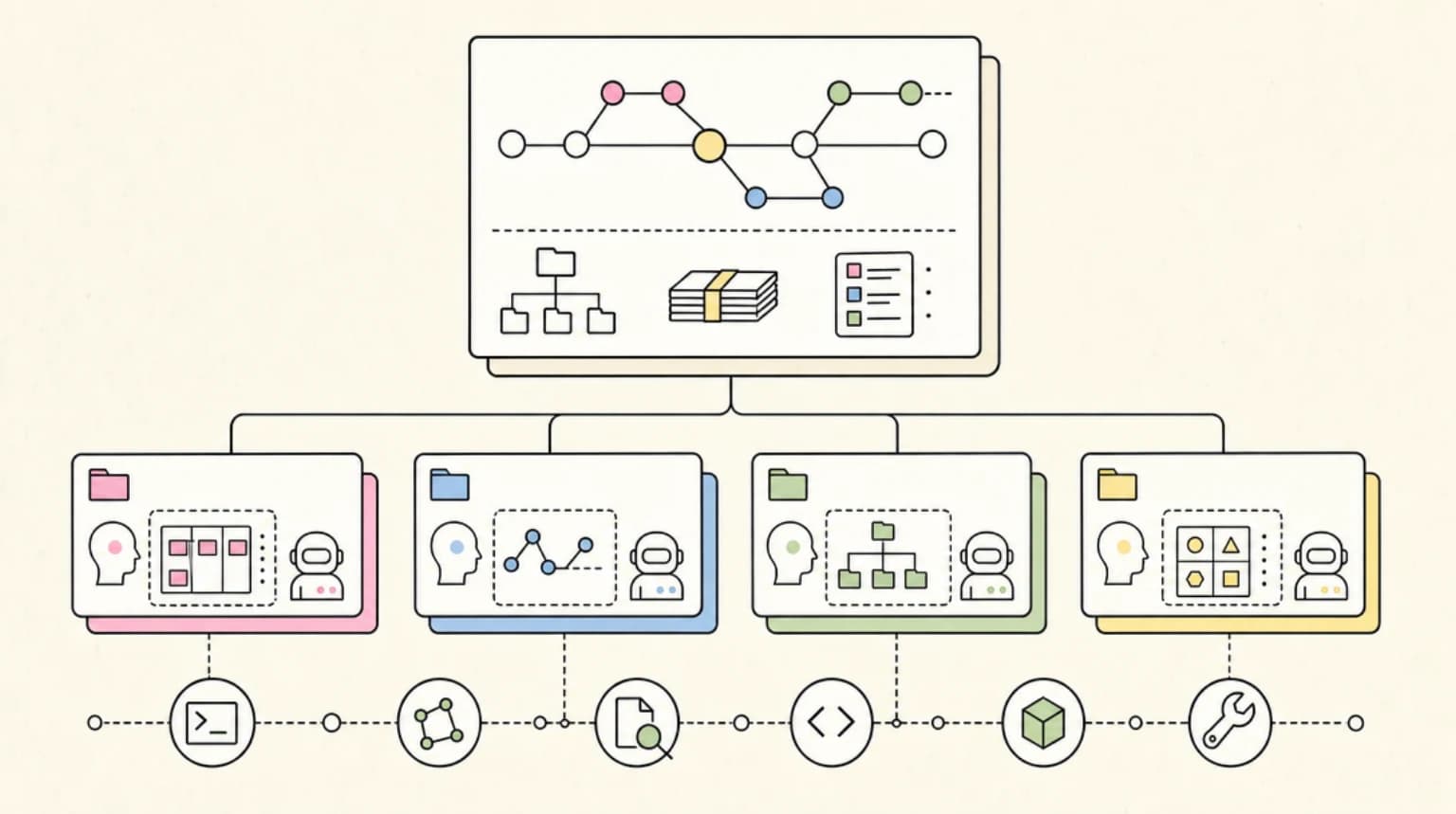
--- type: transcript date: 2025-11-10 youtube_id: qF2ldv3hfN0 --- # Transcript: Streamline Your Git Workflow with GitKraken and Claude Code We've all been there. You're deep in a coding session. Everything's working perfectly. Then disaster strikes. You lost hours of work because you forgot to commit. Or maybe you're staring at a merge conflict that makes no sense. In this video, I'm going to be showing you Git Kraken Desktop, which is not just a Git guy, but your command center for streamlined AI enhanced development. This is the visual git client that actually shows you what's happening in the repository. Plus, it has built-in AI that automates the tedious stuff so you can stay in the flow. I manage dozens of open source projects that reach tens of thousands of developers with contributors from across the world. Git Kraken Desktop is one of the latest tools that I've been using to help for how I can handle multiple projects, multiple branches, PRs. It acts as my control center for everything Git. So now I want to do a quick comparison between the Git CLI, GitHub Desktop, as well as Git Kraken within the Git CLI. Now a lot of people start here, myself included. So we're going to be able to check the status, things like that. A lot of the commands are sort of second nature after having used this for so long. Say if we want to create a commit, we have all of these different commands where we can check out, we can push, we can merge, we can do all of the things from the terminal. But in terms of the actual visual interface, it definitely isn't the most optimal experience. Now, in terms of the GitHub desktop app, it is a little bit of an improvement in terms of the visual aspect. The nice thing within here, you can see on the lefth hand side here. If you were to have a ton of different repositories. So, I'm on a new computer here. I just have one spun up here. But within here, what you're going to be able to do is you're going to be able to check out different branches. You can see the different pull requests. You can open things up within VS Code. You can also create your commit messages on the lefth hand side here. But it is pretty basic. It does the job, but it doesn't give you a lot of flexibility in terms of the actual power of what Git has available to it. And that's where Git Kraken comes in. So, right off the bat within here, you see a very rich git history within here. We can see all of the different commits, all of the different pull requests as well as the overall history where you can also see within here when I reverted different changes, all of the different commits that I made on a particular project, as well as all of the different pull requests that I have gone in and merged from different contributors. But the one thing that is nice with this within here, I could have all of the different applications that I'm working on. So at any given time there might be half a dozen if not more active repositories that I'm working on whether it's maintaining them, making new ones, trying new ideas, it could potentially be something for this YouTube channel. And the nice thing with this is it not only is a visual representation of everything that's gone on. I can actually interact with this. So I can check out different commits. I can cherrypick different commits. There's a ton of power within here that I can do with just a couple clicks. Yes, you could do all of this from the CLI, but to be honest, I don't think I know a lot of engineers that are confident to be able to do everything from the Git CLI. And the other cool thing within this is a ton of AI features. Now, what I want to show you is how you can leverage Git Kraken in combination with some of these new tools that are out there such as cloud code or cursor or any agentic IDE that are out there. And what I'm going to do is I'm going to create a new directory. We're going to call this get Kraken. and we're going to create a new repository within my active repos directory here. The nice thing with Git Kraken is you will have this terminal built in. And what I can do within here is I can initialize a CLI agentic tool like claude or whatever that tool might be. What I'm going to do is I'm going to go ahead and fire up Claude. I'm going to say create an index.html file that says hello world. Okay. So within here, what Claude's going to go ahead and do is create that file for me. And the cool thing with some of these agentic tools is they actually have the awareness in terms of how to use something like git. And where that is helpful is I can say now I want to create five different versions across five different branches. Let's iterate on 1 2 3 4 5 Hello hello as the different branches and create different versions of this page. Keep it relatively simple. Maybe just change the background to start. What I wanted to show is how you can actually use in combination with agentic coding tools like cloud code and use something like git kraken. Within here you saw that we did have it execute the relevant git commands where we're creating that index.html file on the respective branch. And within here it's going through and it's creating all of those individual requests for us. You can see as the agent's going through it's creating those simple updates to the index.html file. It's committing those messages and then we can see that it's making all of those different branches for us. This is just a really good demonstration just to show you visually. This is how you'll begin to see them all within this rich visualization here. One of the really nice things with this is in terms of actually switching back and forth between the different branches as you build out different features like this is it gives you the ability to actually parallelize a number of different versions of what you might be asking for within something like codeex. A really cool feature of codeex is there is the capability where you can actually spin off four parallel requests and you can choose the preferred version. It gives you another way in terms of how you can leverage some of these agentic tools. Now the one thing to know with agentic coding tools now some of them have the ability where you can rewind to different checkpoints. If you exit out of the session for instance or if you close the conversation or clear the history you'll only be able to go back so far with these rewind or checkpoint capabilities. Not to mention, you're sort of trapped to your own machine rather than having it on a proper version control on something like GitHub or GitLab or what have you where you can collaborate with your co-workers. And now the really cool thing with this, all I have to do to check out the different branches is I can go and I can doubleclick on all of these branches and within here I have one clean directory with all of these different files. But to look at all of the different versions of the same file of what I had asked for, I just need to simply doubleclick. Just to show you where this is helpful, if I go and I refresh these different branches here. So we have five and then if I refresh four, if I double click on three. So you can see just how easy it is to try out new things. Just to show you a little bit more of a practical demonstration, what I can say here is I want to create five different navigations. Now specifically I want five different branches. I want it to start with nav dash and then have numbers iterating 1 through five and have wildly varying navigations. I'm trying to determine the overall look and feel of my site. Okay, so I'm going to go ahead and send that in. And now, additionally, what you can do within Cloud Code is I can specify to parallelize these requests. Here we go. We're starting to see our different navigation bars come in. And the nice thing with this is without much effort or without waiting, I can just doubleclick and I can refresh and I can take a look at all of the different AI generated code here to get a sense on the potential direction that I want to go in. That's just a handful of ways in terms of how you can leverage it. Now just to show you how you can leverage Git Kraken. What you can do within here is say if I create a file or you make some sort of edit. What you can do within here is all that you need to stage the changes is you can choose to individually stage each file that you want to stage. Alternatively, you can click to stage all of the different changes. You'll see that file will drop down into the stage files area. And then as soon as I'm ready, what I can do is I can either write the commit summary as well as the description or I can click this button. And what's nice with this is it will actually generate the commit message for me. Now, additionally, what I can do within here is I have this really nice descriptive commit message of everything that had happened. Just to show you some of the AI capabilities on where this is really neat is if I say I want the index html to read developers digest and for it to overall have a new navigation as well as a footer. Now that I made some changes to the file, what I can do within here is if I click to view the changes again, I can click through to the file and within here we have this very rich git diff visualization. Within here we see all of the different changes of what it added to that blank index html file. And with this if I make individual changes you'll see the very clear differentiation. Within here we have about 200 lines of code without any problem. I can go ahead I can stage this change and I can click to generate that AI generated commit message. And within here we see that we have an initial HTML structure. And within here it has all of the context of what I have done within this particular file. I can go ahead and I can commit that and we'll see it within the graph here. And then within here, let's say I'm going to be adventurous and I'm going to refactor to Nex.js for instance. What I can do within here is I can create that branch and then I can leverage claude again and I can say I want to migrate what I currently have to be within Nex.js. I'll go ahead and I'll kick that off. The really nice thing by leveraging Git Kraken is you have the visibility into what you're doing. And the nice thing with this is as you get more confident with leveraging a tool like this, you can also be a little bit more adventurous in terms of how you want to leverage some of these AI tools. This gives you that additional flexibility in terms of different ways on how you can leverage this both with an agentic tool as well as directly within Git Kraken. Next up, one of my favorite capabilities with Git Kraken is its ability to compose commits with AI. Let me just show you this. If I click to compose commits with AI, what we'll see within here is it will break all of those different changes that we had within that commit into each of these individual steps. So within here, we have all of these different stacked commit messages. And the nice thing with this is you're going to see all of the different changes only to those files for each of those individual things of all that we had just asked the AI to do. Claude Code went ahead and it created a bunch of different files and did a handful of different steps. And the cool thing with this is by leveraging this is I can break up all of those different commits into smaller, more digestible and clear pieces in terms of what I'm actually adding into the codebase. I do have the option where I can pick, reword, I can squash or drop these. Or additionally, if I'm happy with what it has generated, I can go ahead and I can create those commits. All in all, it just gives you really good hygiene in terms of how you can leverage this in the workplace on your own projects or really within whatever you have in mind. You have a little bit more flexibility in terms of how you can leverage these AI tools without having to worry about breaking something or all of a sudden losing your work. But overall, I encourage you to check out Git Kraken. It is an incredibly powerful tool. I only scratched the surface in terms of some of its capabilities. If you are interested in trying out Git Kraken, you will be able to try this out completely for free. Additionally, if you are interested in signing up to the pro tier, you will be able to get 50% off by using the link that I have within the description of the video. But otherwise, if you found this video useful, please like, comment, share, and subscribe. Otherwise, until the next
Technical content at the intersection of AI and development. Building with AI agents, Claude Code, and modern dev tools - then showing you exactly how it works.