Run AI Models Locally with Ollama and LM Studio
Install Ollama and LM Studio, pull your first model, and run AI locally for coding, chat, and automation - with zero cloud dependency.
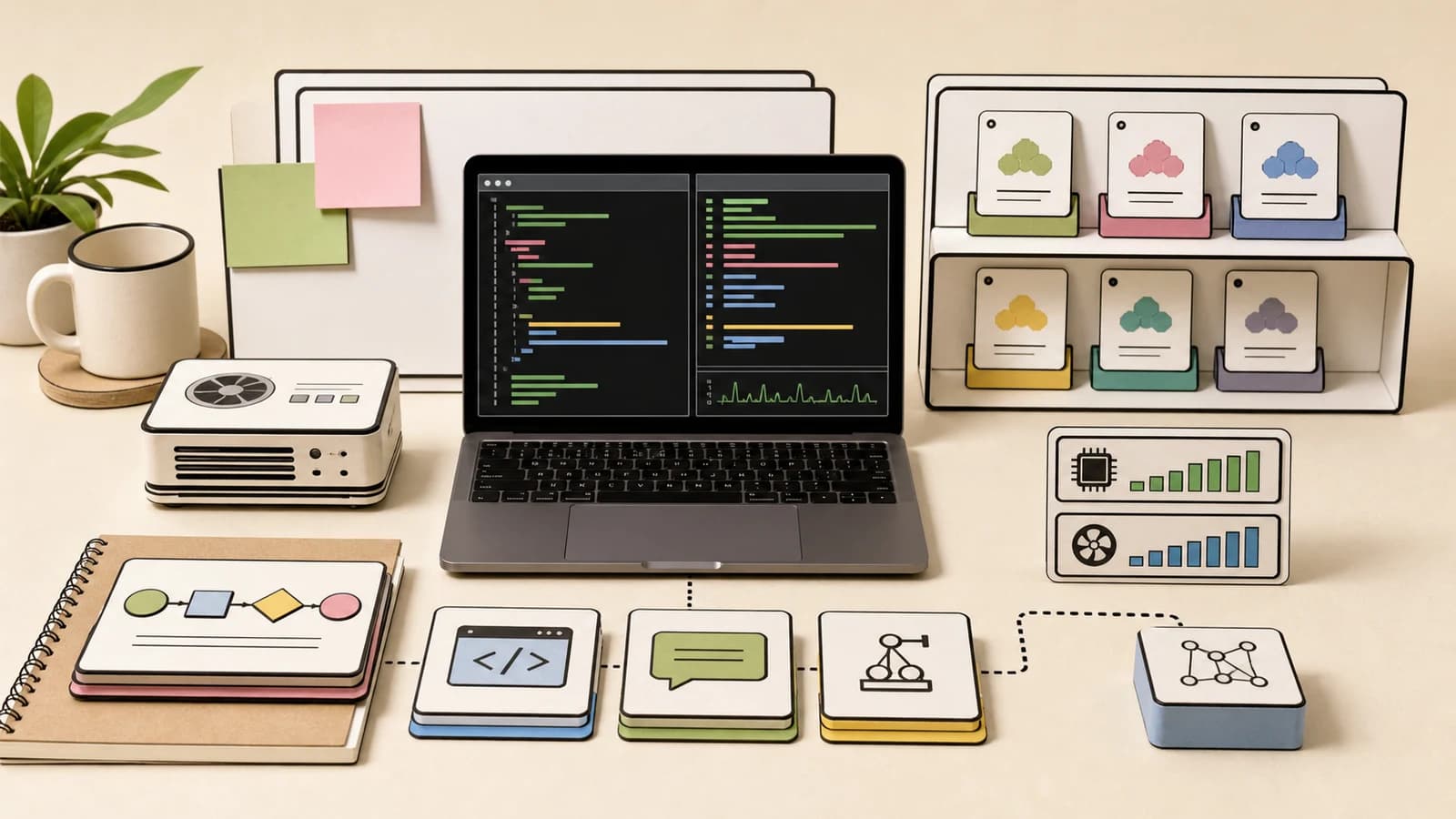
Running AI models on your own machine gives you something no cloud API can: complete control. No usage limits, no API keys, no data leaving your computer. This guide walks you through setting up both Ollama (CLI-first) and LM Studio (GUI-first), choosing the right models, and integrating local AI into your development workflow.
Why run models locally?
There are four compelling reasons to run models on your own hardware instead of relying on cloud APIs.
Privacy. Your code and prompts never leave your machine. This matters when you are working on proprietary codebases, handling sensitive data, or operating under compliance requirements. Local inference means zero data exposure.
Cost. Cloud API calls add up fast. GPT-4 class models cost $10-30 per million tokens. A local model running on your GPU costs nothing per request after the initial hardware investment. If you run hundreds of queries a day, the savings are significant.
Speed. No network round trip. Local models respond in milliseconds for short prompts, especially on modern GPUs. You skip DNS lookups, TLS handshakes, queue times, and rate limits entirely.
Offline access. Airplanes, coffee shops with bad wifi, network outages - none of these stop a local model. Once downloaded, the model works with zero internet connectivity.
The tradeoff is clear: local models are smaller and less capable than the largest cloud models. But for many tasks - code completion, documentation, refactoring, Q&A - a well-chosen local model is more than sufficient.
Two tools, two approaches
Before diving in, here is how the two main tools compare:
| Feature | Ollama | LM Studio |
|---|---|---|
| Interface | CLI + REST API | Desktop GUI + REST API |
| Best for | Developers, scripting, CI/CD | Visual exploration, non-technical users |
| Model format | GGUF (auto-managed) | GGUF (browse and download) |
| Model discovery | ollama pull <name> | Built-in search and download UI |
| API | OpenAI-compatible at :11434 | OpenAI-compatible at :1234 |
| OS support | macOS, Linux, Windows | macOS, Linux, Windows |
| Resource usage | Lightweight daemon | Electron app, heavier footprint |
| Custom models | Modelfile system | Import any GGUF file |
Both tools are free. Most developers end up using Ollama for day-to-day coding workflows and LM Studio for model exploration and testing. You can run both side by side without conflicts since they use different ports.
Part 1: Ollama (CLI-first)
Ollama is the easiest way to run local models from the terminal. It handles model downloads, quantization, memory management, and provides both a CLI and an API server.
Install Ollama
macOS:
# Install via Homebrew
brew install ollama

# Or download directly from ollama.com
curl -fsSL https://ollama.com/install.sh | sh
After installation, Ollama runs as a background service automatically. You can verify it is running:
ollama --version
Linux:
curl -fsSL https://ollama.com/install.sh | sh
This installs Ollama and sets up a systemd service. The service starts automatically:
# Check status
systemctl status ollama

# Start manually if needed
systemctl start ollama
For NVIDIA GPU support, make sure you have the NVIDIA Container Toolkit or up-to-date CUDA drivers installed. Ollama detects your GPU automatically.
Windows:
Download the installer from ollama.com/download. Run the .exe and follow the prompts. Ollama runs in the system tray.
For WSL2 users, install the Linux version inside your WSL2 distro instead. This gives you better GPU passthrough and a more consistent development experience.
Verify the installation
# Should print the version number
ollama --version

# List downloaded models (empty on fresh install)
ollama list

# The API server runs on port 11434 by default
curl http://localhost:11434/api/tags
Your first model: ollama run llama4
Pull and run a model. Llama 4 is Meta's latest open-weight model and a solid starting point.
# Pull and start an interactive chat session
ollama run llama4
The first run downloads the model (this takes a few minutes depending on your connection). Subsequent runs start instantly since the model is cached locally.
Once the model loads, you get an interactive prompt:
>>> What is the time complexity of quicksort?
Quicksort has an average-case time complexity of O(n log n) and a
worst-case time complexity of O(n^2). The worst case occurs when the
pivot selection consistently picks the smallest or largest element,
leading to unbalanced partitions...
Type /bye to exit the session.
Useful Ollama commands
# List all downloaded models
ollama list

# Pull a model without starting a chat
ollama pull qwen3.5-coder:32b

# Remove a model to free disk space
ollama rm llama4

# Show model details (parameters, quantization, size)
ollama show llama4

# Run with a system prompt
ollama run llama4 --system "You are a senior Python developer. Be concise."

# Pipe input from a file
cat bug-report.txt | ollama run llama4 "Summarize this bug report in 3 bullet points"

# Run the API server explicitly (usually auto-started)
ollama serve
Creating custom models with Modelfile
Ollama lets you create custom model configurations using a Modelfile. This is useful for baking in a system prompt, adjusting parameters, or layering fine-tuned weights.
cat > Modelfile << 'HEREDOC'
FROM qwen3.5-coder:32b
SYSTEM "You are a senior full-stack developer. You write clean, well-tested TypeScript and Python. Be concise. Show code, not explanations."
PARAMETER temperature 0.2
PARAMETER num_ctx 8192
HEREDOC

ollama create my-coder -f Modelfile
ollama run my-coder
Your custom model appears in ollama list and can be used anywhere you reference a model name - in API calls, tool integrations, and scripts.
Part 2: LM Studio (GUI-first)
LM Studio is a desktop application that lets you discover, download, and run local models through a visual interface. If you prefer clicking over typing, or you want a fast way to compare models side by side, LM Studio is the tool for you.
Install LM Studio
Download the installer for your platform from lmstudio.ai.
- macOS: Download the
.dmg, drag to Applications, and launch. - Windows: Download the
.exeinstaller and run it. - Linux: Download the
.AppImage, make it executable withchmod +x, and run it.
LM Studio requires no additional dependencies. It bundles its own inference engine (based on llama.cpp) and handles GPU detection automatically.
The LM Studio interface
When you open LM Studio, you see four main sections:
-
Discover - Browse and search the Hugging Face model catalog directly from the app. Filter by size, quantization, architecture, and popularity. Click download on any GGUF model to pull it locally.
-
Chat - An interactive chat interface where you pick a model from your local library and start a conversation. You can adjust temperature, max tokens, system prompt, and other parameters in real time from the sidebar.
-
My Models - Your local model library. Shows all downloaded models with size, quantization level, and last-used date. You can delete models from here to reclaim disk space.
-
Developer - The local API server. Toggle it on to expose an OpenAI-compatible API endpoint at
http://localhost:1234/v1. Any tool or script that works with the OpenAI API can point at this endpoint.
Downloading your first model
- Open the Discover tab
- Search for "qwen3.5-coder" or "llama 4"
- You will see multiple versions of each model - look for GGUF files with Q4_K_M quantization as a good starting point
- Click the download button next to the version you want
- Wait for the download to complete (progress bar shows in the app)
LM Studio stores models in ~/.cache/lm-studio/models/ on macOS and Linux, and C:\Users\<you>\.cache\lm-studio\models\ on Windows.
Running a model in chat
- Go to the Chat tab
- Click the model selector dropdown at the top
- Pick a downloaded model
- Wait a few seconds for it to load into memory
- Type your message and press Enter
The sidebar lets you adjust these parameters on the fly:
- Temperature - Controls randomness. Use 0.1-0.3 for code, 0.7-1.0 for creative text.
- Max tokens - Maximum response length. Set higher for long code generation.
- System prompt - Instructions that apply to the whole conversation.
- Context length - How much previous conversation the model can see. Higher values use more RAM.
- GPU offload - How many layers to run on GPU vs CPU. More GPU layers means faster inference.
Starting the local API server
The real power of LM Studio for developers is its local API server.
- Go to the Developer tab
- Select a model to serve
- Click Start Server
- The server starts at
http://localhost:1234/v1
You can now call it from any tool or script using the OpenAI API format:
curl http://localhost:1234/v1/chat/completions \
  -H "Content-Type: application/json" \
  -d '{
    "model": "local-model",
    "messages": [
      {"role": "system", "content": "You are a helpful coding assistant."},
      {"role": "user", "content": "Write a TypeScript function that debounces another function"}
    ],
    "temperature": 0.2
  }'
Python example:
from openai import OpenAI

client = OpenAI(
    base_url="http://localhost:1234/v1",
    api_key="lm-studio",  # required by the library but not checked
)

response = client.chat.completions.create(
    model="local-model",
    messages=[
        {"role": "system", "content": "You are a senior TypeScript developer."},
        {"role": "user", "content": "Explain the builder pattern with an example"},
    ],
    temperature=0.3,
)

print(response.choices[0].message.content)
Note: The model name in API calls can be anything when using LM Studio - it routes to whichever model you have loaded in the Developer tab. Some setups use "local-model" as a convention.
Comparing models side by side
One of LM Studio's standout features is the ability to load two models and compare their responses to the same prompt. This is invaluable when deciding which model to use for a specific task.
- In the Chat tab, click the "+" button to create a new chat
- Load a different model in this tab
- Send the same prompt to both
- Compare quality, speed, and token usage
This visual comparison is something Ollama cannot do without custom scripting.
Best models for coding
Not all models are created equal for programming tasks. Here are the top choices for code generation, completion, and refactoring as of April 2026.
Qwen 3.5 Coder
The current leader for local code generation. Available in multiple sizes to fit your hardware.
# 32B parameters - best quality, needs 20GB+ VRAM
ollama run qwen3.5-coder:32b

# 14B - great balance of quality and speed
ollama run qwen3.5-coder:14b

# 7B - fast, works on 8GB VRAM
ollama run qwen3.5-coder:7b
Qwen 3.5 Coder excels at:
- Multi-file code generation
- Understanding complex codebases
- TypeScript, Python, Rust, and Go
- Following coding conventions from context
DeepSeek Coder V3
Strong at code reasoning and multi-step problem solving. Particularly good at debugging.
# 33B - full quality
ollama run deepseek-coder-v3:33b

# 7B - lightweight option
ollama run deepseek-coder-v3:7b
Best for:
- Debugging and error analysis
- Algorithm implementation
- Code review and suggestions
- Mathematical and logical reasoning in code
CodeLlama
Meta's code-specialized Llama variant. Mature, well-tested, and widely supported by tools.
# 34B - best quality
ollama run codellama:34b

# 13B - good middle ground
ollama run codellama:13b

# 7B - lightweight
ollama run codellama:7b
Best for:
- Code infilling (fill-in-the-middle)
- Large context windows (up to 100K tokens)
- Broad language support
- Integration with older tooling that expects CodeLlama
Quick comparison for coding models
| Model | Size | VRAM Needed | Speed | Code Quality |
|---|---|---|---|---|
| Qwen 3.5 Coder 32B | 18GB | 24GB | Medium | Excellent |
| Qwen 3.5 Coder 14B | 8GB | 12GB | Fast | Very Good |
| DeepSeek Coder V3 33B | 19GB | 24GB | Medium | Excellent |
| DeepSeek Coder V3 7B | 4GB | 8GB | Very Fast | Good |
| CodeLlama 34B | 19GB | 24GB | Medium | Very Good |
| CodeLlama 7B | 4GB | 8GB | Very Fast | Decent |
Best models for general use
For chat, writing, summarization, and general reasoning tasks, these models lead the pack.
Llama 4
Meta's flagship open model. Strong across the board for general tasks.
# Scout variant - lighter, faster
ollama run llama4

# Maverick variant - larger, more capable
ollama run llama4:maverick
Mistral
Mistral's models punch well above their weight class. Excellent efficiency-to-quality ratio.
# Mistral Large - top quality
ollama run mistral-large

# Mistral Small - fast and capable
ollama run mistral-small

# Mistral 7B - lightweight classic
ollama run mistral:7b
Phi-4
Microsoft's compact model series. Surprisingly capable for its size.
# Phi-4 14B - best in class for its size
ollama run phi4:14b
Quick comparison for general models
| Model | Size | VRAM Needed | Speed | Quality |
|---|---|---|---|---|
| Llama 4 Scout | 15GB | 20GB | Medium | Excellent |
| Llama 4 Maverick | 25GB | 32GB | Slow | Outstanding |
| Mistral Large | 22GB | 28GB | Medium | Excellent |
| Mistral Small | 8GB | 12GB | Fast | Very Good |
| Phi-4 14B | 8GB | 10GB | Fast | Very Good |
Using local models with AI coding tools
The real power of local models comes from integrating them into your existing development workflow.
Claude Code
Claude Code can use local models as a backend through the OpenAI-compatible API that Ollama provides.
# Set the environment variables to point at your local Ollama
export OPENAI_API_BASE=http://localhost:11434/v1
export OPENAI_API_KEY=ollama
Or point at LM Studio:
export OPENAI_API_BASE=http://localhost:1234/v1
export OPENAI_API_KEY=lm-studio
You can also configure a model alias in your shell profile:
# Add to ~/.zshrc or ~/.bashrc
alias claude-local='OPENAI_API_BASE=http://localhost:11434/v1 claude'
Cursor
Cursor has built-in support for local models.
- Open Cursor Settings (Cmd+Shift+P on macOS, Ctrl+Shift+P on Linux/Windows)
- Navigate to Models > Model Provider
- Select Ollama as the provider
- Choose your model from the dropdown (Cursor auto-detects running models)
Alternatively, configure it in ~/.cursor/settings.json:
{
  "ai.provider": "ollama",
  "ai.model": "qwen3.5-coder:32b",
  "ai.endpoint": "http://localhost:11434"
}
For LM Studio, set the provider to "OpenAI Compatible" and point at http://localhost:1234/v1.
Continue.dev
Continue is an open-source AI coding assistant that runs in VS Code and JetBrains. It has excellent local model support.
Install the Continue extension, then edit ~/.continue/config.yaml:
models:
  - title: "Qwen 3.5 Coder 32B"
    provider: ollama
    model: qwen3.5-coder:32b
    apiBase: http://localhost:11434

  - title: "LM Studio Model"
    provider: lmstudio
    model: local-model
    apiBase: http://localhost:1234

tabAutocompleteModel:
  title: "Qwen Coder 7B"
  provider: ollama
  model: qwen3.5-coder:7b
  apiBase: http://localhost:11434
This gives you a full local AI coding setup: the 32B model for chat and generation, and the fast 7B model for tab autocomplete.
Using the API directly
Both Ollama and LM Studio expose OpenAI-compatible REST APIs. You can call them from any language or tool.
Ollama (port 11434):
curl http://localhost:11434/v1/chat/completions -d '{
  "model": "qwen3.5-coder:32b",
  "messages": [
    {"role": "system", "content": "You are a helpful coding assistant."},
    {"role": "user", "content": "Explain async/await in JavaScript"}
  ]
}'
LM Studio (port 1234):
curl http://localhost:1234/v1/chat/completions \
  -H "Content-Type: application/json" \
  -d '{
    "model": "local-model",
    "messages": [
      {"role": "system", "content": "You are a helpful coding assistant."},
      {"role": "user", "content": "Explain async/await in JavaScript"}
    ]
  }'
Python example using the openai library (works with either backend):
from openai import OpenAI

# For Ollama
client = OpenAI(
    base_url="http://localhost:11434/v1",
    api_key="ollama",
)

# For LM Studio
# client = OpenAI(
#     base_url="http://localhost:1234/v1",
#     api_key="lm-studio",
# )

response = client.chat.completions.create(
    model="qwen3.5-coder:32b",
    messages=[
        {"role": "system", "content": "You are a senior developer."},
        {"role": "user", "content": "Review this function for bugs"},
    ],
)

print(response.choices[0].message.content)
Performance tips
Getting the best performance out of local models requires understanding a few key concepts.
Quantization
Models come in different quantization levels that trade quality for speed and memory usage. Both Ollama and LM Studio handle this, but you can choose specific quantizations.
# Q4_K_M - default, good balance (recommended)
ollama run qwen3.5-coder:32b

# Q8_0 - higher quality, more memory
ollama run qwen3.5-coder:32b-q8_0

# Q2_K - smallest, fastest, lowest quality
ollama run qwen3.5-coder:32b-q2_k
In LM Studio, you see the quantization level listed next to each download option. Look for "Q4_K_M" or "Q5_K_M" for the best balance.
| Quantization | Quality | Size (32B model) | Speed |
|---|---|---|---|
| Q2_K | Decent | ~12GB | Fastest |
| Q4_K_M | Very Good | ~18GB | Fast |
| Q5_K_M | Excellent | ~22GB | Medium |
| Q8_0 | Near-Original | ~34GB | Slow |
| FP16 | Original | ~64GB | Slowest |
For coding tasks, Q4_K_M is the sweet spot. Below Q4, you start seeing noticeable quality degradation in code generation. Q8_0 is worth it if you have the VRAM.
GPU vs CPU inference
GPU inference is dramatically faster than CPU inference. If you have a dedicated GPU, make sure your tool is using it.
# Check if Ollama detects your GPU
ollama ps

# Force GPU layers (useful for partial offloading)
OLLAMA_NUM_GPU=999 ollama run llama4
In LM Studio, the GPU offload slider in the model settings controls how many layers run on GPU. Set it to the maximum your VRAM allows.
Approximate speed comparison for a 14B model:
| Hardware | Tokens/second | Time for 500-token response |
|---|---|---|
| NVIDIA RTX 4090 | 80-100 t/s | ~5 seconds |
| NVIDIA RTX 4070 | 40-60 t/s | ~10 seconds |
| Apple M3 Max (GPU) | 30-50 t/s | ~12 seconds |
| Apple M2 Pro (GPU) | 20-35 t/s | ~18 seconds |
| CPU only (modern) | 5-10 t/s | ~60 seconds |
Memory requirements
The golden rule: you need enough VRAM (or unified memory on Apple Silicon) to fit the entire model. If the model does not fit in VRAM, it spills to system RAM, which is 10-20x slower.
# Check current memory usage
ollama ps

# Set maximum VRAM usage
OLLAMA_MAX_VRAM=20000 ollama serve  # 20GB limit
Apple Silicon users: You are in a good position. The unified memory architecture means your GPU can access all system RAM. A MacBook Pro with 36GB of unified memory can run 32B parameter models comfortably.
NVIDIA users: Your VRAM is the hard limit. A 24GB RTX 4090 fits most 32B quantized models. For 70B+ models, you need multi-GPU setups or significant CPU offloading.
Context length optimization
Longer context windows use more memory. If you are running tight on VRAM, reduce the context length.
# Default context length is 2048
# Increase for larger codebases
ollama run qwen3.5-coder:32b --num-ctx 8192

# Reduce to save memory
ollama run qwen3.5-coder:32b --num-ctx 1024
In LM Studio, adjust the "Context Length" slider in the model settings panel before loading a model.
Running multiple models
Ollama can keep multiple models loaded in memory simultaneously. This is useful when you want a fast small model for autocomplete and a large model for complex tasks.
# Load two models at once
OLLAMA_MAX_LOADED_MODELS=2 ollama serve
LM Studio loads one model at a time in the chat interface but can serve a different model via the API server simultaneously.
Comparison: local vs cloud API
Neither local nor cloud is universally better. The right choice depends on your specific situation.
When local models win
- High-volume usage. If you send hundreds of requests per day, local inference is essentially free after hardware costs. Cloud APIs charge per token.
- Privacy requirements. Regulated industries, proprietary codebases, or personal preference for data sovereignty. Local means no third-party data processing.
- Offline workflows. Traveling, unreliable connections, or air-gapped environments.
- Latency-sensitive tasks. Tab autocomplete, inline suggestions, and real-time code generation benefit from zero network latency.
- Predictable costs. No surprise bills. The hardware cost is fixed regardless of usage.
When cloud APIs win
- Maximum capability. The largest cloud models (Claude, GPT-4.5, Gemini Ultra) are still significantly more capable than anything you can run locally. For complex multi-step reasoning, architectural decisions, or nuanced code review, cloud models have the edge.
- No hardware investment. You do not need an expensive GPU. A $20/month API subscription gives you access to frontier models.
- Always up to date. Cloud providers update models continuously. Local models require manual pulls and version management.
- Scale to zero. Pay only when you use it. If you have light, sporadic usage, cloud APIs are more cost-effective than dedicated hardware.
- Multi-modal capabilities. Cloud models increasingly support images, audio, and video inputs that local models cannot match.
The hybrid approach (recommended)
The best setup for most developers is a hybrid approach:
- Local model for autocomplete and quick tasks. Run a fast 7B model for tab completion, inline suggestions, and quick questions. This handles 80% of your daily AI interactions with zero latency and zero cost.
- Cloud API for complex tasks. Use Claude or GPT-4.5 for architectural decisions, complex refactoring, multi-file changes, and deep code review. These tasks benefit from the larger model's superior reasoning.
# Example hybrid setup
# Terminal 1: Ollama running locally for autocomplete
ollama serve

# Terminal 2: LM Studio for model exploration and testing
# (launch the desktop app)

# Terminal 3: Use Claude Code for complex tasks (cloud)
claude

# Your editor: Continue.dev with Ollama for autocomplete,
# cloud model for chat
This gives you the best of both worlds: fast, free, private AI for routine tasks, and maximum capability when you need it.
Troubleshooting
Ollama is not detecting my GPU
# Check GPU detection
ollama ps

# On Linux, ensure CUDA drivers are installed
nvidia-smi

# On macOS, Metal support is automatic for Apple Silicon
# Intel Macs do not have GPU acceleration in Ollama
LM Studio shows "out of memory" when loading a model
Your model is too large for your available VRAM. Try:
- Choose a smaller quantization (Q4 instead of Q8)
- Reduce the GPU offload slider so more layers run on CPU
- Lower the context length
- Close other GPU-intensive applications
- Choose a smaller model variant (7B instead of 14B)
Models are slow on first load but fast after
This is normal. The first load reads the model from disk into memory. Subsequent inferences reuse the loaded model. Both Ollama and LM Studio keep models cached in memory until you explicitly unload them or run out of memory.
API calls return connection refused
Make sure the server is actually running:
# For Ollama
curl http://localhost:11434/api/tags

# For LM Studio, check the Developer tab - the server toggle must be ON
curl http://localhost:1234/v1/models
Next steps
Now that you have local AI running, here are some ways to go deeper:
- Explore the model library. Browse ollama.com/library or LM Studio's Discover tab for hundreds of available models.
- Create custom models. Write an Ollama
Modelfileto create models with custom system prompts and parameters. - Set up a team server. Run Ollama on a shared machine so your whole team can access local models over the network.
- Try different quantizations. Experiment with Q4 vs Q8 for your specific use case to find your quality-speed sweet spot.
- Build with the API. Use the OpenAI-compatible endpoints from either tool to integrate local AI into your own applications and scripts.
Local AI is not a replacement for cloud models. It is a complement that fills a different niche: fast, private, free, and always available. Set it up once, and it becomes a natural part of your development workflow.
Technical content at the intersection of AI and development. Building with AI agents, Claude Code, and modern dev tools - then showing you exactly how it works.
Was this helpful?
Related Guides
Getting Started with DevDigest CLI
Install the dd CLI and scaffold your first AI-powered app in under a minute.
Getting Started with Claude Code
Install Claude Code, configure your first project, and start shipping code with AI in under 5 minutes.
Chronicle Research Preview Setup Guide
Set up Codex Chronicle on macOS, manage permissions, and understand privacy, security, and troubleshooting.
Related Tools

DeepSeek-TUI
Open-source terminal agent runtime with approval modes, rollback snapshots, MCP servers, LSP diagnostics, and a headless...
View Tool
Aider
Open-source AI pair programming in your terminal. Works with any LLM - Claude, GPT, Gemini, local models. Git-aware ed...
View ToolZed
High-performance code editor built in Rust with native AI integration. Sub-millisecond input latency. Built-in assistant...
View Tool
Gemini
Google's frontier model family. Gemini 2.5 Pro has 1M token context and top-tier coding benchmarks. Gemini 3 Pro pushes...
View ToolRelated Videos
CodeLLM - The New Agentic AI Code Editor With Access To Top Models
In this video, I showcase CodeLLM, an AI-powered code editor that supports multiple models like Claude Sonnet 3.5, DeepSeek R1, and O1, 03 Mini. I demonstrate its features including autocomplete,...

Web Scraping to SMS Alerts with Groq/Ollama Llama 3.1 + Twilio
Create a Powerful AI-Driven News Alert System with OpenAI and Twilio! In this video, learn how to set up an AI notification system by writing a simple script that scrapes Hacker News using...
Deploy ANY Open-Source LLM with Ollama on an AWS EC2 + GPU in 10 Min (Llama-3.1, Gemma-2 etc.)
In this video, I demonstrate how to set up and deploy a Llama 3.1 Phi Mistral Gemma 2 model using Olama on an AWS EC2 instance with GPU. Starting from scratch, I guide you through the entire...
Related Posts

Hermes Agent Guide (2026): What It Is, Local Setup With Ollama, Skills, and Hermes vs OpenClaw
Hermes Agent is Nous Research's MIT-licensed, self-improving AI agent: it writes and refines its own skills, keeps memor...
What Is OpenClaw? Setup, Skills, MCP Server, Claude Code, and Ollama (2026 Guide)
OpenClaw is an open-source, self-hosted personal AI agent you run on your own machine and reach through chat apps like T...
Ollama vs LM Studio vs vLLM vs llama.cpp: Picking a Local Runtime for Coding Agents
A fair, sourced comparison of the four runtimes developers reach for when they want a coding agent talking to a model on...

Microsoft PHI-4: A 14B Parameter Model That Rivals Models 5x Its Size
Microsoft's PHI-4 is an MIT-licensed 14 billion parameter model that matches Llama 3.3 70B and Qwen 2.5 72B on key bench...
Llama 3.3 70B: Meta's Cost-Effective Frontier Model
Meta surprised the AI community with Llama 3.3, a 70 billion parameter model that delivers 405B-class performance at a f...
