Getting Started with Claude Code
Install Claude Code, configure your first project, and start shipping code with AI in under 5 minutes.
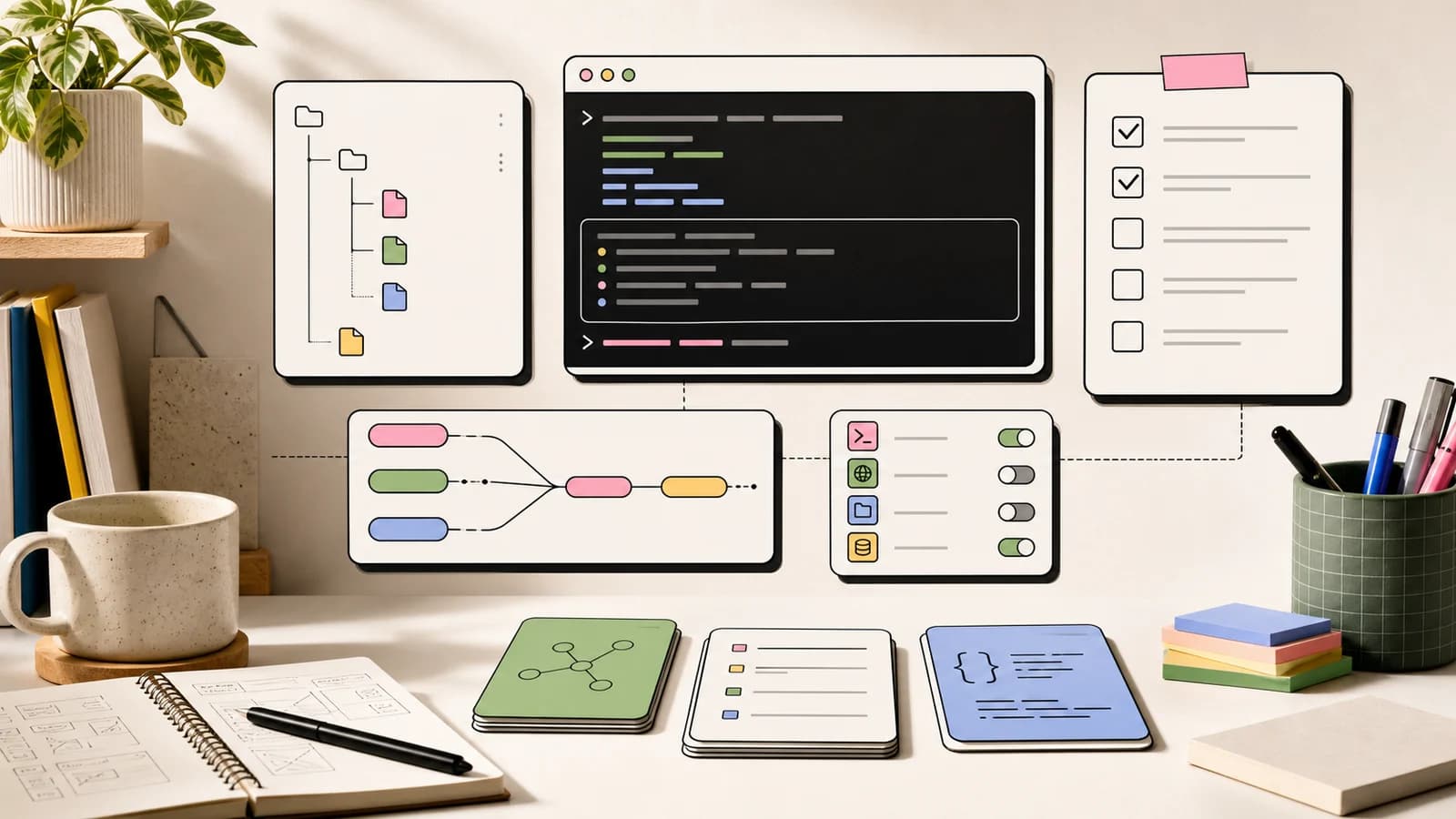
Claude Code is Anthropic's AI coding agent. It runs in your terminal, reads your entire codebase, edits files, runs commands, manages git, and builds features from plain English descriptions. This guide walks you through installation, your first session, project configuration, and the workflows that make Claude Code worth using every day.
Official Sources
Use this guide for practical context, then verify implementation details against the primary documentation:
| Topic | Official Source |
|---|---|
| Overview & Installation | Claude Code Overview |
| Getting Started | Getting Started with Claude Code |
| Memory & CLAUDE.md | Memory and project context |
| Settings & Configuration | Claude Code Settings |
| Best Practices | Best Practices |
| Common Workflows | Common Workflows |
| MCP Integration | MCP Overview |
| Pricing | Anthropic Pricing |
Prerequisites
Before you start, make sure you have:
- A terminal (macOS Terminal, iTerm2, Windows Terminal, or any Linux terminal)
- Git installed and configured
- A Claude subscription (Pro at $20/mo, Max at $100/mo or $200/mo, Teams, or Enterprise) or an Anthropic Console account with API credits
Node.js is not required for the recommended installation method.
Install Claude Code
The recommended way to install Claude Code is the native installer, which handles auto-updates automatically.
macOS and Linux
curl -fsSL https://claude.ai/install.sh | bash
Windows PowerShell
irm https://claude.ai/install.ps1 | iex
Windows CMD
curl -fsSL https://claude.ai/install.cmd -o install.cmd && install.cmd && del install.cmd
Windows users need Git for Windows installed first.
Alternative installation methods
Homebrew (macOS):
brew install --cask claude-code
WinGet (Windows):
winget install Anthropic.ClaudeCode
npm (any platform with Node.js 18+):
npm install -g @anthropic-ai/claude-code
Homebrew, WinGet, and npm installations do not auto-update. You will need to manually upgrade periodically.
Verify the installation
claude --version
You should see a version number printed to your terminal. If not, restart your terminal and try again.
Your first session
Navigate to any project directory and start Claude Code:
cd ~/my-project
claude
On first launch, Claude Code opens a browser window for authentication. Log in with your Claude account and return to the terminal. Your credentials are stored locally - you will not need to log in again.
You will see the Claude Code welcome screen with your session info and recent conversations. The cursor sits at a prompt where you type natural language instructions. No special syntax required.
Ask your first question
Start by understanding what you are working with:
what does this project do?
Claude reads your project files and returns a summary of the codebase, its structure, and the technologies used. You can follow up with more specific questions:
explain the folder structure
where is the main entry point?
what dependencies does this project use?
Claude Code reads files on demand as it needs them. You do not need to manually point it at specific files.
Make your first code change
Tell Claude what you want in plain English:
add input validation to the signup form
Claude Code will:
- Find the relevant files in your codebase
- Show you the proposed changes as a diff
- Wait for your approval before writing anything
- Apply the changes once you confirm
You always see exactly what Claude plans to change before it touches a file. Press y to accept or n to reject each change.
Set up CLAUDE.md
CLAUDE.md is a markdown file in your project root that tells Claude Code about your project. It loads automatically at the start of every session. Think of it as a README written specifically for your AI coding partner.
Generate one automatically
The fastest way to create a CLAUDE.md is to let Claude do it:
/init
Claude analyzes your codebase and generates a CLAUDE.md with build commands, test instructions, directory structure, and coding conventions it discovers. Review the output and refine it with anything Claude would not know on its own.
Write one manually
Create a CLAUDE.md file in your project root:
# My Project

## Stack
Next.js 16 + Convex + Clerk + Tailwind CSS v4

## Key Directories
- src/app/ -- Pages and layouts (App Router)
- src/components/ -- React components
- convex/ -- Backend functions and schema
- src/lib/ -- Shared utilities

## Commands
- npm run dev -- Start dev server on port 3000
- npx convex dev -- Start Convex backend
- npm test -- Run test suite
- npm run lint -- Run ESLint

## Conventions
- Use TypeScript strict mode
- Prefer server components by default
- Use 2-space indentation
- Write tests for all new utilities
What to include
A good CLAUDE.md covers:
- Stack and architecture. What frameworks, languages, and tools the project uses.
- Directory structure. Where key code lives so Claude finds things faster.
- Build and test commands. The exact commands to build, test, lint, and deploy.
- Coding conventions. Indentation, naming, file organization, import patterns.
- Workflow rules. Things like "always run tests before committing" or "use conventional commits."
Keep it under 200 lines. Concise instructions get followed more reliably than long documents. If you need more detail, split it into files under .claude/rules/ - these load automatically alongside your CLAUDE.md.
CLAUDE.md locations
CLAUDE.md files can live in multiple places, each with a different scope:
| Location | Scope | Shared with |
|---|---|---|
./CLAUDE.md | This project | Team via git |
./.claude/CLAUDE.md | This project | Team via git |
~/.claude/CLAUDE.md | All your projects | Just you |
Project-level files are great for team standards. Personal files are for your own preferences across all projects.
Essential commands
These are the commands you will use daily:
| Command | What it does |
|---|---|
claude | Start an interactive session |
claude "task" | Start a session with an initial task |
claude -p "query" | Run a one-off query and exit (no interactive session) |
claude -c | Continue the most recent conversation |
claude -r | Resume a previous conversation from a list |
claude commit | Create a git commit with an AI-generated message |
In-session commands
Once inside a Claude Code session, these slash commands are available:
| Command | What it does |
|---|---|
/help | Show all available commands |
/init | Generate or improve your CLAUDE.md |
/memory | View and manage loaded instructions and auto memory |
/compact | Compress conversation history to free up context |
/clear | Clear conversation history entirely |
exit or Ctrl+C | Exit the session |
Press ? in a session to see all keyboard shortcuts. Use Tab for command completion and the up arrow for command history.
Key features
File editing
Claude Code reads and edits files directly. It shows you a diff of every proposed change and waits for approval before writing. You can ask it to:
refactor the auth middleware to use async/await
add error handling to all API routes
rename the User model to Account across the entire codebase
Claude handles multi-file changes in a single operation. It understands imports, references, and dependencies across your project.
Test running
Claude Code runs your test suite and interprets the results:
run the tests and fix any failures
write unit tests for the payment module, then run them
add integration tests for the user API endpoints
It reads test output, identifies failures, fixes the code, and re-runs tests until they pass. This loop is one of the most powerful workflows in Claude Code.
Git integration
Git operations become conversational:
what files have I changed?
commit my changes with a descriptive message
create a branch called feature/user-profiles
create a pull request for this feature
help me resolve these merge conflicts
The claude commit shortcut is particularly useful. Run it from the command line and Claude stages your changes, writes a commit message based on the actual diff, and commits - all in one step.
Plan mode
For complex tasks, use Plan mode to get Claude to analyze and plan before making changes:
use plan mode: refactor the database layer to support multi-tenancy
In Plan mode, Claude reads your code and produces a detailed plan without editing anything. Once you review and approve the plan, switch to normal mode to execute it. This is useful for large refactors, architectural changes, or any task where you want to think before acting.
Piping and scripting
Claude Code follows Unix conventions. You can pipe data in and out:
# Analyze log output
tail -200 app.log | claude -p "summarize any errors in this log"

# Review changed files
git diff main --name-only | claude -p "review these files for security issues"

# Generate from a template
cat template.md | claude -p "fill in this template for our new API endpoint"
The -p flag runs Claude in non-interactive mode, making it composable with other CLI tools.
Common workflows
Explore a new codebase
give me an overview of this codebase
explain the main architecture patterns used here
trace the request flow from the API endpoint to the database
Fix a bug
I'm getting "Cannot read property of undefined" when users submit the form. Fix it.
Claude traces the error through your code, identifies the root cause, and implements the fix. Give it the exact error message and any steps to reproduce.
Add a feature
add a dark mode toggle to the settings page. Use the existing theme system.
Claude plans the approach, writes the code across multiple files, and verifies it works with your existing patterns.
Write and run tests
write tests for the payment processing module, run them, and fix any failures
This single prompt triggers Claude to write test files, execute your test runner, read the output, fix any failures, and repeat until everything passes.
Refactor
refactor the user service from callbacks to async/await
split this 500-line component into smaller, reusable components
Create a pull request
create a PR with a summary of all the changes we made in this session
Claude stages changes, creates a branch, writes a PR title and description, and opens the pull request.
Tips for better results
Be specific. "Fix the login bug where users see a blank screen after entering wrong credentials" works much better than "fix the login bug."
Give context. If you know where the problem is, say so. "The issue is in src/auth/login.ts around line 45" saves Claude from searching the entire codebase.
Break big tasks into steps. Instead of "build a complete user management system," try:
1. create a database schema for user profiles
2. add API endpoints for CRUD operations on profiles
3. build a settings page that uses those endpoints
Let Claude explore first. Before asking for changes, let Claude understand the code:
analyze the payment module before we make changes
Use auto memory. Claude Code automatically remembers things across sessions - build commands, debugging insights, your preferences. You can also tell it explicitly: "remember that the tests require a local Redis instance."
Keep CLAUDE.md current. When your project conventions change, update CLAUDE.md. Outdated instructions cause confusion.
Where to use Claude Code
Claude Code is available across multiple surfaces, all sharing the same configuration:
| Surface | Best for |
|---|---|
| Terminal CLI | Full-featured coding, scripting, automation |
| VS Code extension | Inline diffs, editor integration |
| JetBrains plugin | IntelliJ, PyCharm, WebStorm integration |
| Desktop app | Visual diff review, multiple sessions, scheduled tasks |
| Web (claude.ai/code) | No local setup, long-running tasks, mobile access |
| Slack | Team bug reports to pull requests |
| GitHub Actions | Automated PR review and issue triage |
Your CLAUDE.md files, settings, and MCP servers work across all of them.
Next steps
Once you are comfortable with the basics:
- CLAUDE.md deep dive - Advanced configuration including custom skills, hooks, and MCP servers
- MCP Servers - Connect external tools to Claude Code
- Official docs - Full reference documentation from Anthropic
- Best practices - Patterns for getting the most out of Claude Code
- Common workflows - Detailed guides for specific development tasks
Claude Code gets more useful the more you invest in CLAUDE.md and your project configuration. Start simple, iterate as you learn what works, and let auto memory handle the rest.
Technical content at the intersection of AI and development. Building with AI agents, Claude Code, and modern dev tools - then showing you exactly how it works.
Was this helpful?
Related Guides
Getting Started with DevDigest CLI
Install the dd CLI and scaffold your first AI-powered app in under a minute.
Run AI Models Locally with Ollama and LM Studio
Install Ollama and LM Studio, pull your first model, and run AI locally for coding, chat, and automation - with zero cloud dependency.
Chronicle Research Preview Setup Guide
Set up Codex Chronicle on macOS, manage permissions, and understand privacy, security, and troubleshooting.
Related Tools
Zed
High-performance code editor built in Rust with native AI integration. Sub-millisecond input latency. Built-in assistant...
View Tool
OpenCode
Open-source AI coding agent for terminal, desktop, and IDE. Works with 75+ LLM providers including Claude, GPT, Gemini,...
View Tool
Claude Code
Anthropic's agentic coding CLI. Runs in your terminal, edits files autonomously, spawns sub-agents, and maintains memory...
View Tool
Lovable
AI app builder - describe what you want, get a deployed full-stack app with React, Supabase, and auth. No coding requi...
View ToolRelated Videos

Getting Started with Langchain.JS and Unstructured.IO in 6 Minutes
In this video I show you how you can quickly set up an application where you query a domain for a question by setting up a small langchain application with unstructured.io and HNSWLib (for...

The Power of Up-to-Date AI: Getting Started with Perplexity's Online LLM APIs
In this video, I will show you the new online LLMs that are now available through perplexity's api's. I will also run through an example in how you can get started with setting it up within...

Getting Started with Vercel's Next.js AI Chatbot In 5 Minutes
#vercel #openai #huggingface #anthropic #langchain #gpt4 #gpt3 #claude In this video I am taking a first look at the Vercel Next.js AI Boilerplate to get up and running in just minutes !...
Related Posts

Claude Sonnet 5.5 Developer Guide: Pricing, Benchmarks, and the Five API Changes
Claude Sonnet 5.5 (claude-sonnet-5-5) is Anthropic's new mid-tier model: $2/$10 per million tokens, 70.6% on Terminal-Be...
How to Use Jev: Every Way to Call It, the Opus 5.5 Pairing, and Laya vs Kev vs Ollaya
TypeSafe's Jev dropped its waitlist on September 27. Every verified way to call it (API, Python SDK, llm CLI, Pydantic A...
GPT-6 Sol vs Claude Opus 5.5 vs Grok 4.7: The September 2026 Price War
Three frontier launches in 48 hours repriced the agentic workhorse tier: Grok 4.7 at $2/$6 (Sep 21), Claude Opus 5.5 at...

Claude Opus 5.5 Developer Guide: API Examples, Claude Code Setup, Pricing, and When to Use It
Claude Opus 5.5 (claude-opus-5-5) is Anthropic's new default Opus: $4/$20 per million tokens, $0.20 cache reads, 1M cont...
Anthropic Cuts Fable 5 Biology Fallbacks by 85%: What the Safeguard Tuning Means for Developers
Anthropic retuned Claude Fable 5's biology classifiers on August 7, cutting biology-related fallbacks by about 85% while...
Beyond the Pelican Test: Opus 5 Renders the Lord of the Rings With a 1M-Token Budget
Andrej Karpathy gave Opus 5 the first paragraph of the Lord of the Rings, a 1M-token budget (about $10), and asked for a...
