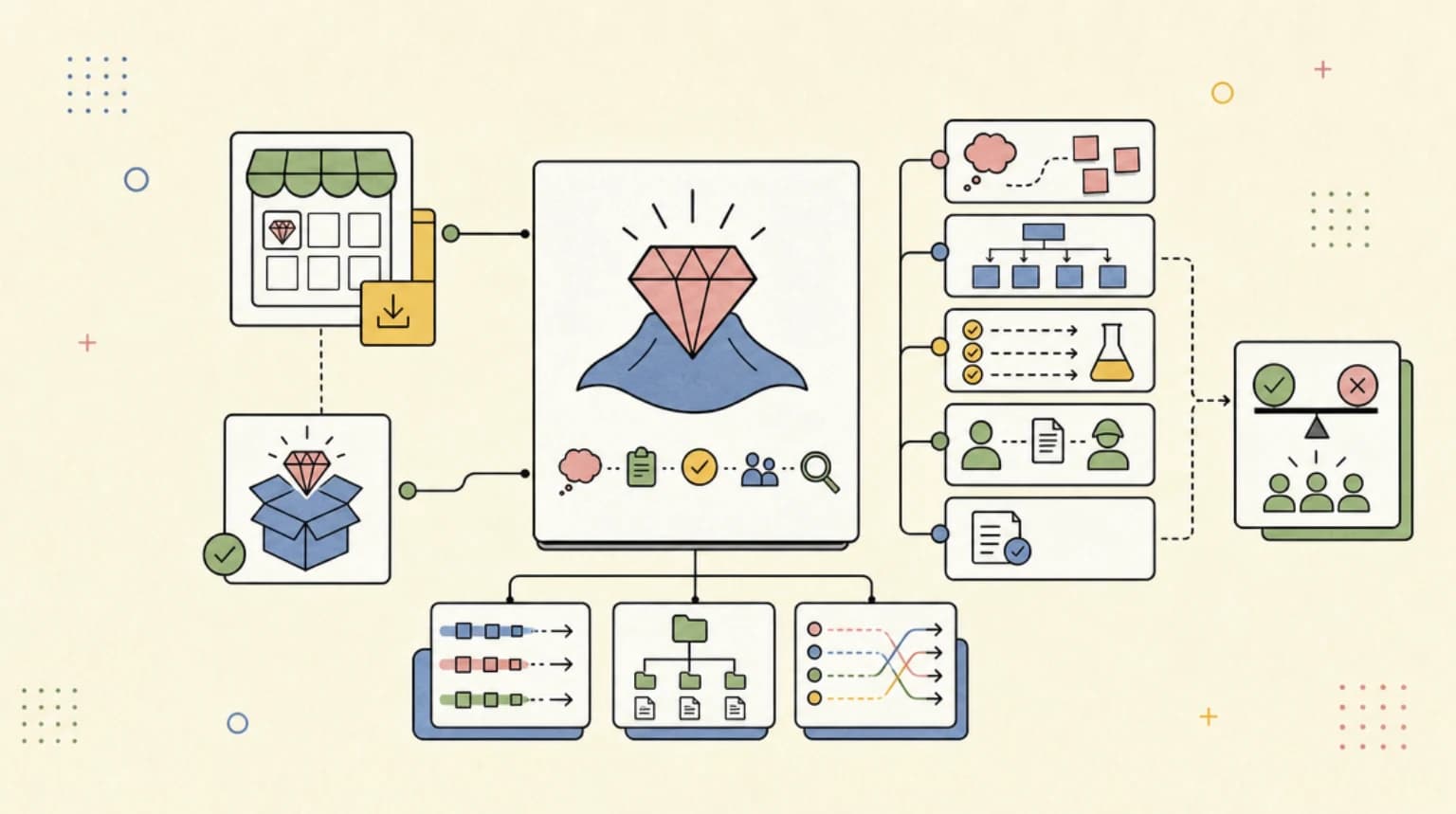
In this video, learn to utilize Claude Code within Chrome to access new automation capabilities that were previously impossible. Leveraging your existing browser sessions, Claude Code enhances cross-tab actions, data transfer, and multi-step workflows without additional tools like Selenium or Playwright. Discover how to integrate and automate tasks across various web applications, use AI web apps directly, and manage workflows securely. Follow along for a detailed setup guide, a demonstration, and insights on the potential risks and benefits of this innovative tool. Use Claude Code with Chrome: https://code.claude.com/docs/en/chrome 00:00 Introduction to Leveraging Claude Code in Chrome 00:21 Understanding Browser Sessions and Capabilities 00:47 Comparison with Other Automation Tools 01:27 Using Claude Code for Various Services 02:24 Setting Up Claude Code in Chrome 05:01 Demonstration of Claude Code in Action 07:20 Debugging and Advanced Use Cases 08:18 Conclusion and Final Thoughts
Weekly deep dives on AI agents, coding tools, and building with LLMs - delivered to your inbox.
Free forever. No spam.
Subscribe FreeNew tutorials, open-source projects, and deep dives on coding agents - delivered weekly.

--- type: transcript date: 2025-12-31 youtube_id: Irl90FjzuOc --- # Transcript: Claude Code Can Now Automate Work in Chrome In this video, I'm going to show you how you can leverage cloud code within Chrome that allows new capabilities that previously weren't possible. Your browser is already logged into everything. Think Gmail, Google Docs, Sheets, YouTube. This could be Gemini. This could be any different work applications that you're using. All of these are already authenticated. These sessions exist. The cookies are already there. And Claude can now use all of that. Now, what's really exciting with what they just announced is you can have parallel actions across different tabs, cross data transfer, and complex multi-step workflows that don't require tools like Playright, Selenium, or Puppeteer. And one of the novel and interesting things with this is you can actually even leverage other AI web apps directly from Cloud Code. And I'll show you exactly how to do that. And the benefit of this is everything that you're already logged into within your browser, Claude Code, is now going to be able to access this. I do want to touch on how this is a little bit different than some of the other automation tools that are out there. Think things like Selenium, Playright, Puppeteer, all of these browsers that are out there. They have isolated browser context. They're good for testing applications. But one of the big issues with all of them is when it spins up that Chromium instance is there's no cookies or sessions, at least not in a way that's easy to set up. You have to authenticate every time. Not to mention, there's going to be a fresh install with the different projects that you leverage it in. Now claude in Chrome leverages your actual browser. It can use all your existing sessions and it's already logged in and works just like you do. And the other benefit of this is you don't actually need different API keys to leverage different services. So what do I mean by that? So basically if you think of all the services that you might use throughout the day, think notion, maybe it's air table, Figma, whatever your job is, there might be internal tools that you're leveraging or just other AI tools that are out there. You don't actually have to get the API key to wire this up to get all of this working. Now in terms of how you can use this, you can say things like use Gemini to generate an image with Nano Banana and then go and post that to Slack. What it will do is it will actually go through those different services. It can leverage the commands to copy, it can download, it can use a browser just like you would. It is now leveraging cloud code to extend that harness capabilities to be much more general and not just necessarily focused on code. Now what's within cloud code? Now there are a lot of core functions that are very similar to something like playwright, selenium or puppeteer. It allows you to navigate, read pages, take screenshots, click videos that you can use within documentation or debugging different things. Now, additionally, what you can do with this is you can actually leverage JavaScript, which makes this that much more powerful. Now, in terms of how to set this up, it's pretty straightforward. All that you have to do is get the Claude and Chrome extension. I'll put the links to all of this within the description of the video. And this web page also has a number of really good examples in terms of how you can use this. Now, another interesting thing with Claude in Chrome is you effectively have a sidebar like you see in these images here. So, you're going to be able to also use this directly within Chrome if you'd like. Now, in terms of how you leverage this within Cloud Code is through an MCP server. So, it's going to translate all of those requests into the different browser actions that you're asking. Additionally, what you can do is say in that Gemini example of going and getting an image, you can go and save those images out locally. And what Cloud Code will do is it will actually orchestrate the browser and if need be, it can leverage your file system. Say you're trying to create a document and you want to aggregate some information or go and reach for some assets. You can go and do all of that. Now, in order to get set up, you do need Google Chrome. You do need the Cloud and Chrome extension. You do need the Claude Code CLI. And then you also need a paid cloud plan to get started with this. Now, there's two ways to use this. You can use this directly within your browser within the side panel. You can chat along with any page. You can watch all of the actions in real time. This is similar to the comment browser from Perplexity. Also, the Atlas browser from Chat GPT. and it also has a number of built-in shortcuts within here. Now, the one thing that I do want to mention regardless of whether you're using this within the side panel or within cloud code is you do have to understand some of the risk because this is a new environment and it's going to be within an environment where it's authenticated to all of your different services. You do have to be extra careful in terms of where it's navigating and what it is actually doing because as they say front and center on the website, malicious actors can hide instructions in websites, emails, and documents to trick the AI into taking harmful actions without your knowledge. One of the things that they did to help mitigate this is it will actually ask your approval either on every action or if you want to auto approve on a domain, you have to actually approve each domain. And I think this is a pretty good safeguard because you don't want to be reading a malicious blog post for instance that might have some hidden prompt injection within that and then try and take you to another site and take your information or something to that effect or run some JavaScript or what have you. You do want to be mindful of the different sites that the agent is visiting and what it's doing. Now, in terms of how you can leverage this, you can't have shortcuts or skills that will trigger different workflows of what you want the agent to do within cloud Chrome. Now, if you think about that, think of all the tasks that you do day-to-day within the web browser. Imagine all of a sudden actually having some of those actions automated. This is the type of system that allows you to do that. Say for instance, if you want to summarize things, take screenshots, or research particular topics, you can do that through a handful of ways within Cloud Code. whether it's setting up slash commands or setting up skills that will be triggered when you ask for that particular action if it's something reusable. Now for a quick demonstration. So within cloud code once you have the MCP server set up and you have the claude in Chrome extension all installed if you forward/mcp and you go within the tool for cla and chrome you can see all of the different actions that it can take. It can navigate. It can resize windows. It can create little videos like I mentioned. It can upload images. It can get page text. It can get the context of the different tabs. That's one thing to know with it is it actually can go through different tabs or if you want to paralyze different things, you can do that. Additionally, you can read console logs as well as network requests. Now, just to demonstrate this, I'm going to say let's go to the Gemini web app and I want to put within the prompt box that I want to generate an image that says hello world and then save that locally within this directory. What it will do is it will read the current tabs that it has within the group. Now, what is a group? When you're using Claude in Chrome, you'll notice that it does have this little grouping mechanism that you will see in all the different windows that it's active. You'll also notice that it will say Claude has started debugging the browser. And that's how it controls the browser through the Chrome extension. Now, what you'll see within here is we see Gemini is loaded. Let me click on the prompt box and enter a request to generate an image with hello world text. And the cool thing with this is if we look at the initial request, it tried to type generate an image. it realized the text didn't appear within the box from the screenshot that it took and then from there it went and tried a different approach. So instead of the position it actually went and it got the ref for that DOM element to go and click that and it actually went ahead and generated our image. Now that we have that it's opened up our image for us. We can see that Gemini has generated the image with hello world text on the chalkboard. Now I need to save it. Let me click on the image to see the download options and then from there we can see the image in a full view at the top corner. Let me click to download the image. And then we can see that it actually went ahead and it downloaded the full-size image. Now, here we can see it's now asking, can I download this image from Gemini? It will be saved to your downloads folder as a PNG. And then I can move it to the current directory. I'll go ahead and I'll say yes. Then from there, we can see the image was downloaded. Now, let me move it to your current directory as a cleaner file system. And then here we go. The generated image of Hello World is now saved within the directory that I'm currently in. It has the features of a chalkboard. Now if I go and I click that path, I can now see that I have this image locally. This is just a really quick example just to show you what is now possible. Now another benefit of this is you can actually use this to debug different web applications since it can read your console logs as well as your network requests as well as execute JavaScript and actually record different demos. You can use this for reports, documentation or when you're actually building something with cloud code or testing a feature, you can go and leverage it. You can say something like debug my app, check for console errors, inspect API responses, so on and so forth. Now, the possibilities, as you might imagine, they're quite endless. You can fill out forms, dashboard extraction, social media management, research, testing, personal use cases, just things that you do day-to-day. Now, with this tool is you can largely automate a lot of these different processes. All in all, just think about all of the different things that you do within the browser day-to-day. All of them are different depending on who we are, whether it's within our job, the personal things that we do within the browser, all of the repetitive clicks, copy and pasting things from one tab to another. What if we could actually have Claude do all of that for us? Now, while it might not be able to do all of it, it could potentially be able to do a large portion of it. Otherwise, that's pretty much it for this video. I'll put all the links within the description of the video, but otherwise, if you found this video useful, please like, comment, share, and subscribe. Otherwise, until the next
Technical content at the intersection of AI and development. Building with AI agents, Claude Code, and modern dev tools - then showing you exactly how it works.