Multiline Input - Claude Code
Shift+Enter, Option+Enter, or backslash+Enter for multi-line prompts.

Multiline input lets you compose long prompts in Claude Code without hitting submit on every line break.
What it does
Shift+Enter, Option+Enter, or a trailing backslash followed by Enter all insert a newline into the prompt buffer instead of sending it. You can paste multi-line code blocks, write step-by-step instructions, or draft a structured prompt in place. Regular Enter still submits when you're ready.
When to use it
- Pasting code samples, logs, or error messages into a prompt.
- Writing a structured brief with sections and bullets.
- Composing a prompt that mixes prose with file paths or commands.
- Any time your prompt is longer than one terminal line.
Gotchas
- Some terminals don't distinguish Shift+Enter from Enter. Use backslash + Enter as a universal fallback.
- Bracketed paste mode affects how multi-line pastes are interpreted - enable it in your terminal config.
- Vim mode has its own multiline behavior. Use
ofrom normal mode to open a new line cleanly.
Official docs: https://code.claude.com/docs/en/interactive-mode.md#multiline-input
Continue Reading
- Claude Code Mastery course - installation, core workflows, and the prompt habits that make long multi-line briefs pay off
Technical content at the intersection of AI and development. Building with AI agents, Claude Code, and modern dev tools - then showing you exactly how it works.
Was this helpful?
Related Guides
Related Tools
Zed
High-performance code editor built in Rust with native AI integration. Sub-millisecond input latency. Built-in assistant...
View Tool
Claude Code
Anthropic's agentic coding CLI. Runs in your terminal, edits files autonomously, spawns sub-agents, and maintains memory...
View Tool
Claude Agent SDK
Anthropic's SDK for building agents on the same tools, agent loop, and context management that power Claude Code. Python...
View ToolCodeburn
Interactive TUI dashboard that shows exactly where your Claude Code and Cursor tokens are going, in real time.
View ToolRelated Videos

Generate Videos in Codex + Claude Code with This...
Check out HeyGen! https://heygen.1stcollab.com/developersdigest The video introduces HeyGen, an AI video generation platform with a rich API and a CLI that lets developers create, fetch, and manipula...

10x Design in Claude Code and Codex
Try Higgsfield: https://higgsfield.ai/s/higgsfield-general-campaign-developersdigest-juDMTi AI coding agents can build entire websites in minutes, but the default results often still look generic and...

Self Improving Applications with Claude Code & Codex
Build a Self‑Improving Next.js App: Supabase + Vercel Eve + GitHub Issues + Agent Loops Check out Supabase: https://supabase.plug.dev/1wWOTGS The video demonstrates how to build and deploy a self-im...
Related Posts
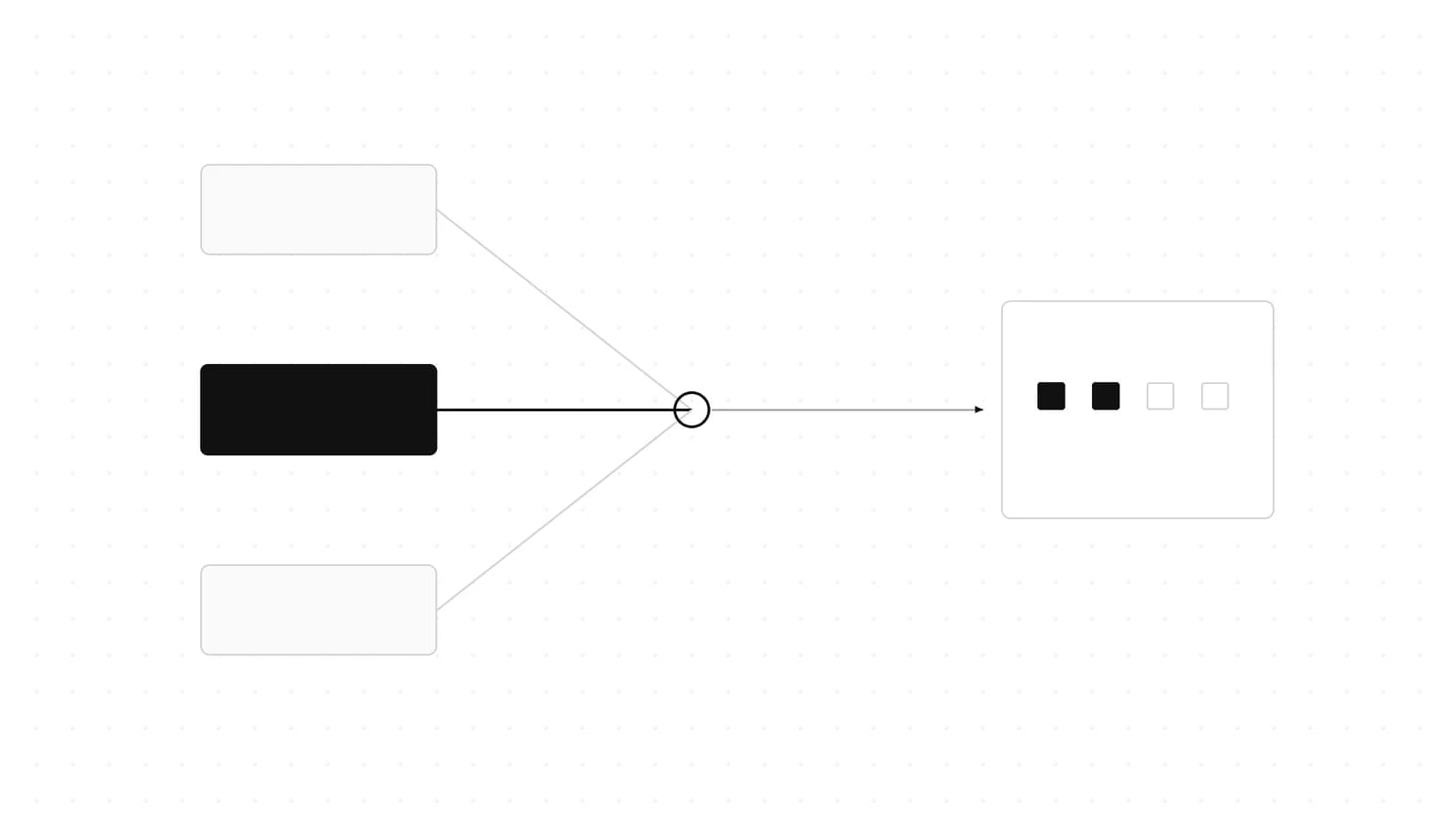
Claude Fable 5.1 in Claude Code: How to Switch, Pin, and Pay Less
Claude Code v2.1.257 points /model fable at Fable 5.1: 1M context, $10/$50 per MTok, $0.25 cache reads. Setup, gotchas,...

Claude Design, Slides and Docs in Any Chat: How to Use Them
Claude Design, Slides and Docs now open in any Claude chat, Claude Code session or the Artifacts tab, on every plan. Exa...

Claude for Startups Offer Paused: What Founders Do Now
Claude for Startups paused its free Claude Team year and $1,000 API credit offer at capacity. What the program page says...

Claude Advisor Tool vs a Bigger Model: When the Pairing Pays
Anthropic's own runs: a Fable 5.1 advisor added 1.7 points to Opus 5.5 for 2.1x the cost. When the Claude advisor tool p...
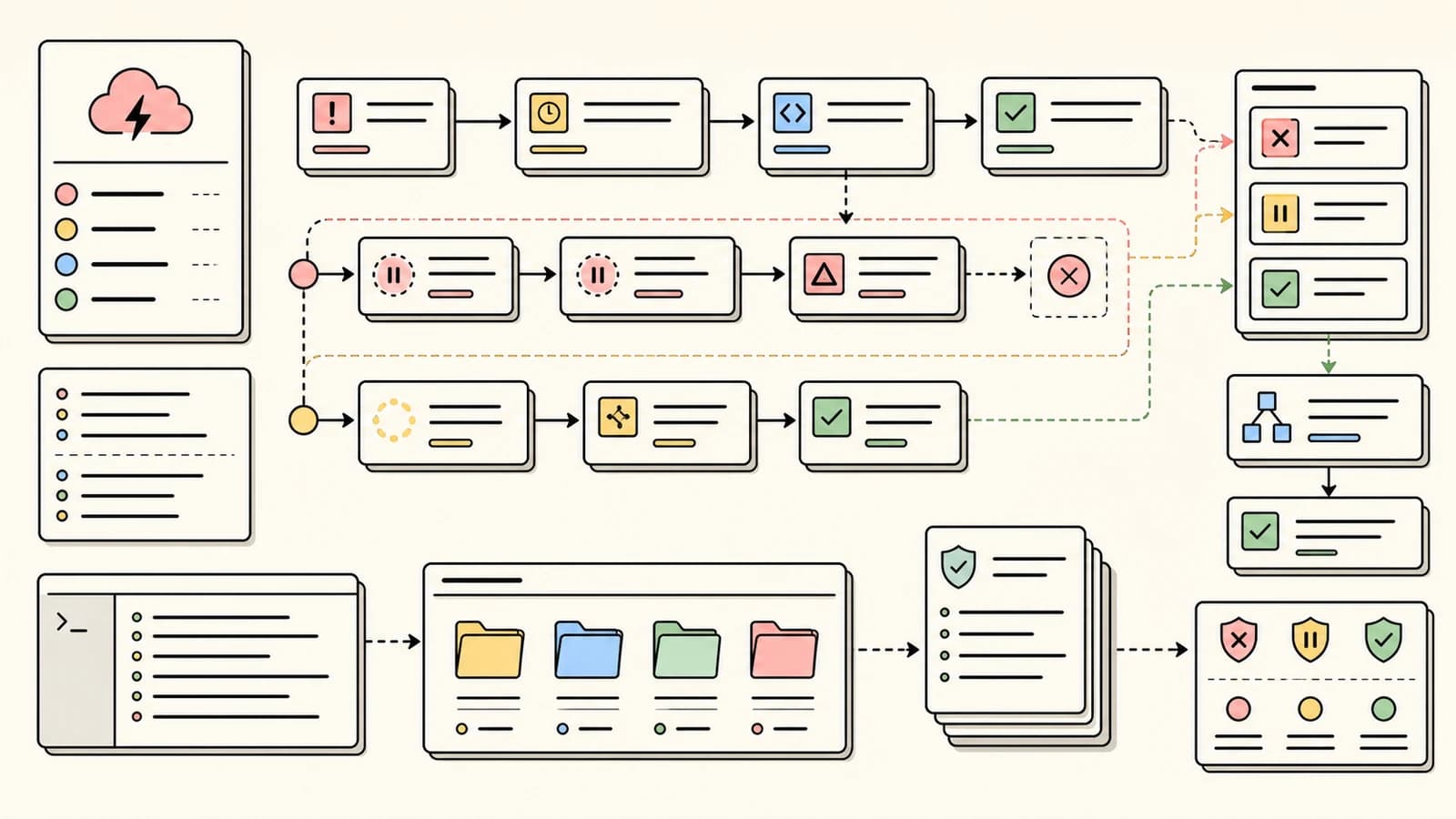
Claude Code Retry Watchdog: Keep Unattended Runs Alive
CLAUDE_CODE_RETRY_WATCHDOG=1 makes Claude Code wait out 429 and 529 errors instead of failing after 10 retries. When to...
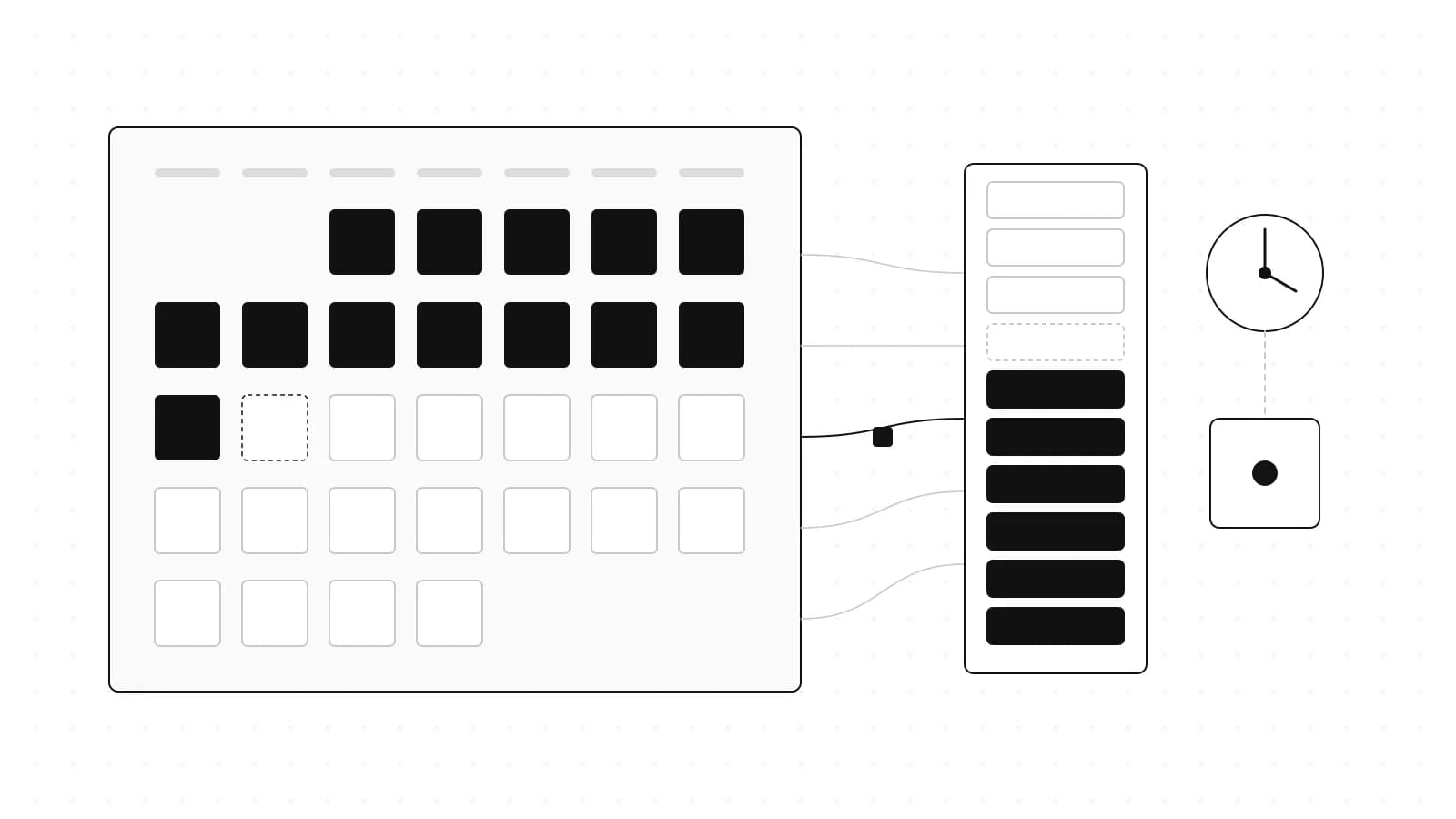
Claude Max API Credits: $100 a Month, What They Cover
Claude Max and Team plans now include a monthly Claude API credit, starting at $100 on Max 5x. What it covers, what it d...
