How to Use MCP Servers: The Complete Guide
TL;DR
MCP servers connect AI agents to databases, APIs, and tools through a standard protocol. Here is how to configure and use them with Claude Code and Cursor.
Official Sources#
| Resource | Link |
|---|---|
| MCP Documentation | modelcontextprotocol.io |
| MCP TypeScript SDK | GitHub - modelcontextprotocol/typescript-sdk |
| Claude Code Documentation | docs.anthropic.com/claude-code |
| Claude Code MCP Setup | docs.anthropic.com/mcp |
| Cursor MCP Documentation | docs.cursor.com/context/model-context-protocol |
AI coding agents are only as useful as the context they can access. Claude Code can read your files and run commands, but what about your production database? Your GitHub issues? Your Slack threads? Your Figma designs?
This is the problem Model Context Protocol (MCP) solves. MCP is a standard protocol - created by Anthropic - that lets AI agents connect to external tools and data sources through a uniform interface. You configure a server once, and every MCP-compatible client can use it. No custom integration code. No per-tool adapters.
This guide covers the practical side: how to find MCP servers, configure them for your tools, and build your own when the existing ones do not fit.
How MCP Servers Work#
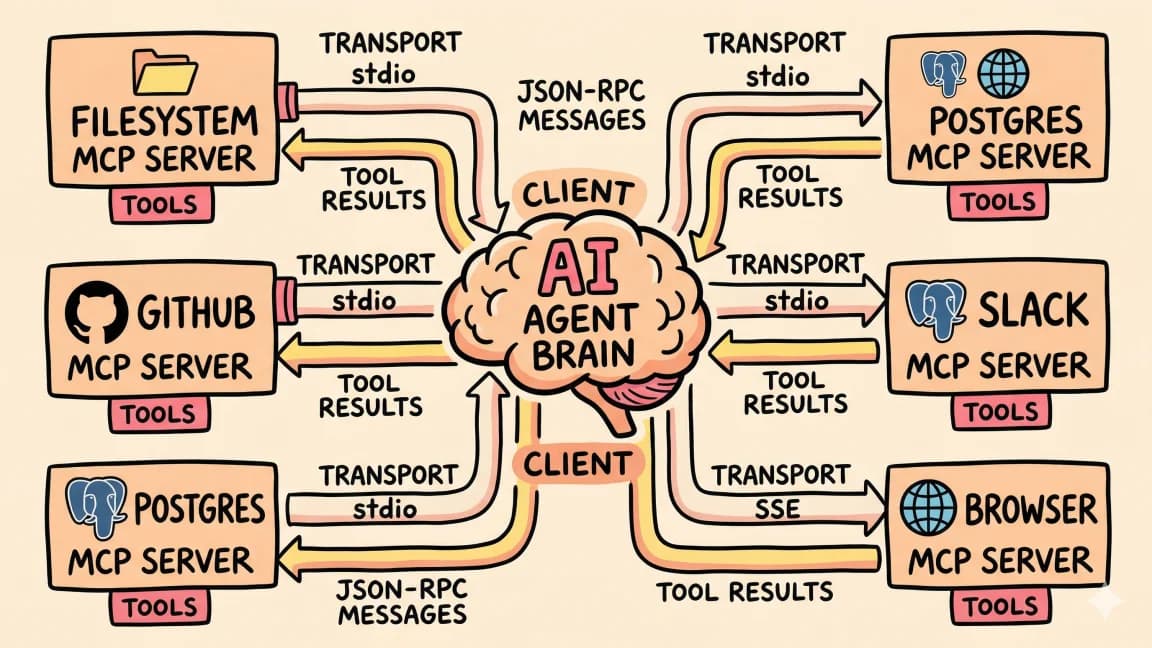
An MCP server is a process that exposes tools, resources, and prompts over a standard protocol. The AI agent (the client) discovers what the server offers and calls those capabilities as needed.
The communication happens over one of two transports:
- stdio - the server runs as a local child process. The client spawns it, sends JSON-RPC messages over stdin, and reads responses from stdout. This is the most common setup for development tools.
- SSE (Server-Sent Events) - the server runs as an HTTP endpoint. The client connects over the network. Used for remote/shared servers.
When you configure an MCP server in Claude Code or Cursor, the client starts the server process, performs a handshake to discover available tools, and then makes those tools available to the model. The model sees the tool descriptions and parameters, just like any other tool definition, and can call them during its reasoning loop.
Code
Your prompt: "What queries are causing slow performance?"
    |
    v
Claude Code (MCP Client)
    |
    v
postgres MCP server
    |-- tool: query(sql) -> executes read-only SQL
    |-- tool: list_tables() -> returns schema info
    |-- tool: explain(sql) -> runs EXPLAIN ANALYZE
    |
    v
Your Postgres database
The model decides which tools to call. You did not write any glue code. You configured a server, and the agent figured out the rest.
Configuring MCP for Claude Code#
Claude Code reads MCP configuration from .claude/settings.json in your project (or ~/.claude/settings.json for global servers). The format is straightforward:
JSON
{
  "mcpServers": {
    "filesystem": {
      "command": "npx",
      "args": [
        "-y",
        "@anthropic-ai/mcp-server-filesystem",
        "/Users/you/projects"
      ]
    },
    "github": {
      "command": "npx",
      "args": ["-y", "@anthropic-ai/mcp-server-github"],
      "env": {
        "GITHUB_TOKEN": "ghp_your_token_here"
      }
    },
    "postgres": {
      "command": "npx",
      "args": [
        "-y",
        "@anthropic-ai/mcp-server-postgres",
        "postgresql://localhost:5432/mydb"
      ]
    }
  }
}
Each server entry has:
- command - the executable to run (usually
npxornode) - args - arguments passed to the command, including the package name and any config
- env - optional environment variables for API keys and secrets
Restart Claude Code after changing the config. It discovers the servers on startup and logs which tools are available.
You can also use the MCP Config Generator to build this configuration interactively. Select the servers you need, fill in your credentials, and it outputs the JSON ready to paste into your settings file.
Configuring MCP for Cursor#
Cursor supports MCP servers through its settings. The configuration lives at ~/.cursor/mcp.json:
JSON
{
  "mcpServers": {
    "filesystem": {
      "command": "npx",
      "args": [
        "-y",
        "@anthropic-ai/mcp-server-filesystem",
        "/Users/you/projects"
      ]
    },
    "github": {
      "command": "npx",
      "args": ["-y", "@anthropic-ai/mcp-server-github"],
      "env": {
        "GITHUB_TOKEN": "ghp_your_token_here"
      }
    }
  }
}
The format is identical to Claude Code. Most MCP servers work with both tools without any changes. If you use both Claude Code and Cursor, you can share the same server configurations - just put them in both config files.
Cursor's Composer mode is where MCP tools shine. When you ask Composer to "check the latest deployment status" or "create a GitHub issue for this bug," it calls the appropriate MCP tool automatically.
Popular MCP Servers#
The MCP ecosystem has grown fast. Here are the servers most TypeScript developers reach for first.
Filesystem Server#
Gives the agent read/write access to specified directories. Useful for agents that need to work with files outside the current project.
JSON
{
  "filesystem": {
    "command": "npx",
    "args": [
      "-y",
      "@anthropic-ai/mcp-server-filesystem",
      "/Users/you/docs",
      "/Users/you/notes"
    ]
  }
}
You pass the allowed directories as arguments. The server restricts access to those paths only - the agent cannot read or write anywhere else. This is a security boundary, not just a convenience.
GitHub Server#
Full GitHub integration. The agent can search repos, read issues and PRs, create branches, comment on code reviews, and manage releases.
JSON
{
  "github": {
    "command": "npx",
    "args": ["-y", "@anthropic-ai/mcp-server-github"],
    "env": {
      "GITHUB_TOKEN": "ghp_your_personal_access_token"
    }
  }
}
Practical uses: "Review all open PRs in this repo and summarize the status of each." "Create an issue for the bug I just described with proper labels." "Find all issues assigned to me across my repos."
The token needs appropriate scopes. For read-only access, repo:read is enough. For creating issues and PRs, you need full repo scope.
Postgres Server#
Direct database access for the agent. It can query tables, inspect schemas, and run analytical queries.
JSON
{
  "postgres": {
    "command": "npx",
    "args": [
      "-y",
      "@anthropic-ai/mcp-server-postgres",
      "postgresql://user:pass@localhost:5432/mydb"
    ]
  }
}
The server enforces read-only access by default. The agent can run SELECT queries and EXPLAIN ANALYZE, but not INSERT, UPDATE, or DELETE. This is the right default for most use cases - you want the agent to analyze data, not modify it.
Use case: "How many users signed up this week compared to last week?" The agent writes the SQL, executes it, and gives you the answer. No context-switching to a database client.
Slack Server#
Connects the agent to your Slack workspace. It can read messages, search channels, and post updates.
JSON
{
  "slack": {
    "command": "npx",
    "args": ["-y", "@anthropic-ai/mcp-server-slack"],
    "env": {
      "SLACK_BOT_TOKEN": "xoxb-your-bot-token",
      "SLACK_TEAM_ID": "T01234567"
    }
  }
}
This requires a Slack app with bot token scopes. At minimum: channels:read, channels:history, chat:write. Set these up in the Slack App dashboard under OAuth & Permissions.
Use case: "Summarize the discussion in #engineering from today." "Post a deployment notification to #releases."
Browser / Puppeteer Server#
Gives the agent a headless browser for navigating web pages, filling forms, and taking screenshots.
JSON
{
  "puppeteer": {
    "command": "npx",
    "args": ["-y", "@anthropic-ai/mcp-server-puppeteer"]
  }
}
The agent can navigate to URLs, read page content, interact with elements, and capture screenshots. Useful for QA workflows, scraping documentation, or testing your own deployed applications.
Memory / Knowledge Graph Server#
A persistent memory layer that stores entities and relationships across sessions.
JSON
{
  "memory": {
    "command": "npx",
    "args": ["-y", "@anthropic-ai/mcp-server-memory"]
  }
}
The agent can create entities ("Project X uses React and Convex"), define relationships ("Project X depends on API Y"), and query the graph later. This gives agents long-term memory beyond the context window.
From the archive
LangChain vs Vercel AI SDK: Which TypeScript AI Framework Should You Use?
Mar 19, 2026 • 5 min read
Multi-Agent Systems: How to Orchestrate Multiple AI Agents in TypeScript
Mar 19, 2026 • 6 min read
The Next.js AI App Stack for 2026
Mar 19, 2026 • 12 min read
OpenAI Codex: Terminal and Cloud AI Coding Agent
Mar 19, 2026 • 5 min read
Building a Custom MCP Server#
When existing servers do not cover your use case, you build your own. The TypeScript SDK makes this straightforward.
Install the SDK:
Install
npm install @modelcontextprotocol/sdkHere is a complete MCP server that wraps an internal API:
TypeScript
import { Server } from "@modelcontextprotocol/sdk/server/index.js";
import { StdioServerTransport } from "@modelcontextprotocol/sdk/server/stdio.js";
import {
  CallToolRequestSchema,
  ListToolsRequestSchema,
} from "@modelcontextprotocol/sdk/types.js";

const server = new Server(
  { name: "internal-api", version: "1.0.0" },
  { capabilities: { tools: {} } }
);

// Define available tools
server.setRequestHandler(ListToolsRequestSchema, async () => ({
  tools: [
    {
      name: "get_deployments",
      description: "List recent deployments for a service",
      inputSchema: {
        type: "object" as const,
        properties: {
          service: {
            type: "string",
            description: "Service name (e.g., 'api', 'web', 'worker')",
          },
          limit: {
            type: "number",
            description: "Number of deployments to return",
            default: 10,
          },
        },
        required: ["service"],
      },
    },
    {
      name: "get_metrics",
      description: "Get performance metrics for a service over a time range",
      inputSchema: {
        type: "object" as const,
        properties: {
          service: { type: "string", description: "Service name" },
          metric: {
            type: "string",
            enum: ["latency_p99", "error_rate", "throughput", "cpu", "memory"],
            description: "Metric to retrieve",
          },
          hours: {
            type: "number",
            description: "Hours of history to fetch",
            default: 24,
          },
        },
        required: ["service", "metric"],
      },
    },
  ],
}));

// Handle tool calls
server.setRequestHandler(CallToolRequestSchema, async (request) => {
  const { name, arguments: args } = request.params;

  switch (name) {
    case "get_deployments": {
      const { service, limit = 10 } = args as any;
      const res = await fetch(
        `https://internal-api.company.com/deployments?service=${service}&limit=${limit}`,
        { headers: { Authorization: `Bearer ${process.env.API_TOKEN}` } }
      );
      const data = await res.json();
      return { content: [{ type: "text", text: JSON.stringify(data, null, 2) }] };
    }

    case "get_metrics": {
      const { service, metric, hours = 24 } = args as any;
      const res = await fetch(
        `https://internal-api.company.com/metrics?service=${service}&metric=${metric}&hours=${hours}`,
        { headers: { Authorization: `Bearer ${process.env.API_TOKEN}` } }
      );
      const data = await res.json();
      return { content: [{ type: "text", text: JSON.stringify(data, null, 2) }] };
    }

    default:
      throw new Error(`Unknown tool: ${name}`);
  }
});

// Start the server
const transport = new StdioServerTransport();
await server.connect(transport);
Save this as server.ts, compile it, and reference it in your MCP config:
JSON
{
  "internal-api": {
    "command": "node",
    "args": ["./dist/server.js"],
    "env": {
      "API_TOKEN": "your-internal-api-token"
    }
  }
}
Now your AI agent can check deployment status and pull metrics by asking in natural language. "What is the p99 latency for the API service over the last 6 hours?" The model translates that to a get_metrics tool call with the right parameters.
Composing Multiple Servers#
The real power of MCP shows up when you combine multiple servers. An agent with access to GitHub, your database, and Slack can answer questions that span all three:
"Find all PRs merged this week that touched the auth module, check if there were any error rate spikes in the auth service after each merge, and post a summary to #engineering."
That single request triggers tool calls across three different MCP servers. The agent reasons through the steps: search GitHub for merged PRs, filter by file paths, query metrics around each merge timestamp, correlate the data, and post the summary. You configured three servers. The agent handled the orchestration.
JSON
{
  "mcpServers": {
    "github": {
      "command": "npx",
      "args": ["-y", "@anthropic-ai/mcp-server-github"],
      "env": { "GITHUB_TOKEN": "ghp_..." }
    },
    "postgres": {
      "command": "npx",
      "args": ["-y", "@anthropic-ai/mcp-server-postgres", "postgresql://..."]
    },
    "slack": {
      "command": "npx",
      "args": ["-y", "@anthropic-ai/mcp-server-slack"],
      "env": {
        "SLACK_BOT_TOKEN": "xoxb-...",
        "SLACK_TEAM_ID": "T..."
      }
    }
  }
}
Security Considerations#
MCP servers run with whatever permissions you give them. A few guidelines:
Least privilege tokens. Give the GitHub server a token scoped to the repos it needs, not your entire account. Give the database server a read-only connection string. Give the Slack server a bot with minimal scopes.
Directory sandboxing. The filesystem server restricts access to the directories you specify. Do not pass / as an argument. Be specific about which paths the agent needs.
Environment variable isolation. API keys go in the env field of the server config, not in your shell environment. This keeps secrets scoped to the server that needs them.
Audit tool calls. MCP clients (Claude Code, Cursor) show you which tools the agent calls before executing them. Review destructive operations before approving.
Setting Up Your First MCP Config#
If you have not configured MCP servers before, start with two: filesystem and GitHub. They cover the most common needs and do not require external services.
- Generate a GitHub personal access token at
github.com/settings/tokens - Use the MCP Config Generator to build your config
- Save it to
.claude/settings.jsonin your project (for Claude Code) - Restart your agent and test with: "List my open GitHub issues" or "Read the README from my other project"
Once those work, add servers for the tools you actually use. Database, Slack, deployment platform - whatever your daily workflow touches.
For projects that use Claude Code, pair your MCP config with a CLAUDE.md file that tells the agent how to use your specific servers. "Use the postgres MCP to answer questions about user data. Use the GitHub MCP to create issues, never manually."
Frequently Asked Questions#
How do I install an MCP server?#
Most MCP servers run via npx with no separate installation step. You add the server configuration to your settings file (.claude/settings.json for Claude Code, ~/.cursor/mcp.json for Cursor) with the package name and any required arguments like connection strings or API tokens. When you restart your AI tool, it spawns the server process automatically. Use the MCP Config Generator to build the configuration without writing JSON by hand.
What are the best MCP servers?#
The most widely used MCP servers are Filesystem (read/write project files), GitHub (issues, PRs, repo management), Postgres (database queries and schema inspection), and Slack (channel messages and notifications). For development workflows, the Browser/Puppeteer server is valuable for visual QA and testing. The Memory server adds persistent knowledge graph storage across sessions. See the MCP protocol overview for details on each.
Can I build my own MCP server?#
Yes. The official TypeScript SDK (@modelcontextprotocol/sdk) provides everything you need to build custom MCP servers. You define tools with names, descriptions, and input schemas, then implement handler functions for each. A basic server with one or two tools can be built in under 50 lines of TypeScript. This is the recommended approach for wrapping internal APIs or domain-specific business logic.
Do MCP servers work with Cursor?#
Yes. Cursor supports MCP servers through the same configuration format as Claude Code. Add your server definitions to ~/.cursor/mcp.json and restart Cursor. The Composer agent mode automatically discovers and uses the available MCP tools when relevant to your request. Most MCP servers work identically across Claude Code and Cursor without any changes.
How many MCP servers can I use?#
There is no hard protocol limit on the number of MCP servers you can configure. In practice, most developers run 3 to 6 servers simultaneously (filesystem, GitHub, database, and a few custom ones). Each server runs as a separate process, so the main constraint is system resources. The AI model sees all available tools from all connected servers and picks the right ones based on context.
What's Next#
MCP turns AI agents from isolated text generators into connected systems that can act on your real infrastructure. The protocol is still evolving - new servers appear weekly, and the SDK continues to improve.
For the foundational concepts, read What Is MCP. To see how MCP tools fit into the agent loop, check out How to Build AI Agents in TypeScript. And for the broader application stack that ties everything together, see the Next.js AI App Stack for 2026.
Continue Reading#
Read next
What Is MCP (Model Context Protocol)? A TypeScript Developer's Guide
MCP lets AI agents connect to databases, APIs, and tools. Here is what it is and how to use it in your TypeScript projects.
5 min readBest MCP Servers in 2026: The Developer Shortlist
A practical ranked list of MCP servers worth installing first for Claude Code, Cursor, Copilot, Codex, and OpenCode: GitHub, Filesystem, Context7, Playwright, Postgres, Sentry, Supabase, Notion, Slack, and more.
10 min readWhat Is Claude Code? The Complete Guide for 2026
Claude Code is Anthropic's AI coding agent for terminal, IDE, desktop, and browser workflows. Learn what it does, how it works, pricing, setup, MCP, skills, hooks, and subagents.
15 min readShare
Developers Digest
Technical content at the intersection of AI and development. Building with AI agents, Claude Code, and modern dev tools - then showing you exactly how it works.
300+ videos30K+ GitHub stars850+ articles
Try These Tools
Related Tools
ProductivityNew
A
AgentCanvas
A hosted infinite canvas your headless AI agents drive over MCP. Any MCP-speaking agent - Claude Code, Codex, Cursor, or...
View ToolAI CodingEssential

Cursor
AI-native code editor forked from VS Code. Composer mode rewrites multiple files at once. Tab autocomplete predicts your...
View ToolAI Frameworks

Mastra
TypeScript-first AI agent framework. Agents, tools, memory, workflows, RAG, evals, tracing, MCP, and production deployme...
View ToolMCP Tools

MCP Inspector
Visual testing tool for Model Context Protocol servers. Like Postman for MCP - call tools, browse resources, and view...
View ToolApps from Developers Digest
Related Guides
Guide
Claude Code Setup Guide
Configure Claude Code for maximum productivity -- CLAUDE.md, sub-agents, MCP servers, and autonomous workflows.
AI AgentsGuide
Claude Code Complete Course
A complete, citation-backed Claude Code course with setup, prompting systems, MCP, CI, security, cost controls, and capstone workflows.
ai-developmentGuide
Building Your First MCP Server
Step-by-step guide to building an MCP server in TypeScript - from project setup to tool definitions, resource handling, testing, and deployment.
AI AgentsRelated Videos

Open Design: Turn Websites into Design Assets for Cursor & Claude Code
Open Design: Open-Source n8n App That Turns Any Website into a Brand Kit, Design System, HTML + Images The video introduces Open Design, an MIT-licensed full-stack template that combines AI and n8n a...
Video·

10x Productivity Hack: Cursor + Dart AI MCP Integration
Boost Productivity with Dart AI In this video, I demonstrate how to use Cursor alongside Dart AI, a powerful project management tool, to enhance productivity and stay organized. I guide you...
Video·

Build an AI Web App with Cursor, Anthropic MCP, Next.js & Neon in 30 Minutes
Sign up for a free Neon account today and get 10 complimentary projects at https://fyi.neon.tech/1dd! Building a Full Stack AI Enabled Platform: Step-by-Step Tutorial In this video, I'll...
Video·
Related Posts

5 min read
MCP
What Is MCP (Model Context Protocol)? A TypeScript Developer's Guide
MCP lets AI agents connect to databases, APIs, and tools. Here is what it is and how to use it in your TypeScript projec...
10 min read
MCP
Best MCP Servers in 2026: The Developer Shortlist
A practical ranked list of MCP servers worth installing first for Claude Code, Cursor, Copilot, Codex, and OpenCode: Git...
15 min read
Claude Code
What Is Claude Code? The Complete Guide for 2026
Claude Code is Anthropic's AI coding agent for terminal, IDE, desktop, and browser workflows. Learn what it does, how it...
12 min read
MCP
The Complete Guide to MCP Servers
Everything you need to know about Model Context Protocol - how it works, how to install servers, how to build your own,...

14 min read
Claude Code
How to Use Claude Code with Next.js
A practical guide to using Claude Code in Next.js projects. CLAUDE.md config for App Router, common workflows, sub-agent...
10 min read
AI Agents
How to Build AI Agents in TypeScript
A practical guide to building AI agents with TypeScript using the Vercel AI SDK. Tool use, multi-step reasoning, and rea...
Build with the member tools

Get Smarter About AI Dev
New tutorials, open-source projects, and deep dives on coding agents - delivered weekly.
One email per weekReal code, not theoryFree forever