Build an AI Agent Web App with LangGraph and CopilotKit
TL;DR
Wire a Python LangGraph agent into a Next.js frontend using CopilotKit's co-agent architecture. Full walkthrough covering the graph, search nodes, streaming state, and the React UI.
Official Sources#
| Resource | Link |
|---|---|
| LangGraph Documentation | langchain-ai.github.io/langgraph |
| CopilotKit Documentation | docs.copilotkit.ai |
| CopilotKit CoAgents Guide | docs.copilotkit.ai/coagents |
| Next.js App Router | nextjs.org/docs/app |
| OpenAI API | platform.openai.com |
Most AI agent tutorials stop at the backend. You get a LangGraph workflow or a CrewAI crew, you run it in a terminal, and the output is a blob of text. The hard part they skip is wiring that agent into an actual application where users can interact with it, see intermediate progress, and control its behavior through a UI.
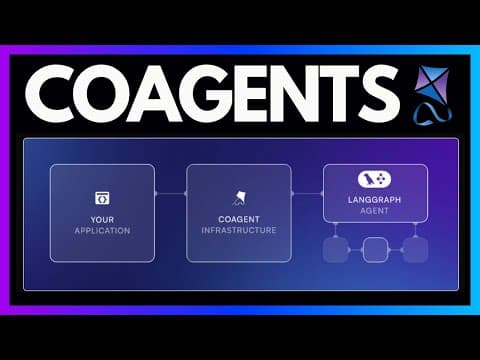
This tutorial builds the full stack. A Python LangGraph agent handles research - breaking queries into sub-searches, pulling results from a search backend you plug in, and generating a research draft. A Next.js frontend renders the progress in real time, lets users add their own resources, and provides a chat panel for steering the agent. CopilotKit connects the two, streaming intermediate state from the agent graph into React components.
By the end, you will have a research assistant where you type a question, watch it search the web, and get a formatted draft you can edit.
Prerequisites#
- Python 3.12+ for the LangGraph agent
- Node.js 18+ for the Next.js frontend
- OpenAI API key for LLM inference
- A search backend the agent can query - any client that returns a URL, title, and text content per result
Project Structure#
The application runs as two independent processes:
project/
  ui/              # Next.js frontend
    app/
      api/copilotkit/route.ts
      page.tsx
    components/
      ResearchCanvas.tsx
      Progress.tsx
      ModelSelector.tsx
      Resources.tsx
  agent/           # Python LangGraph backend
    agent.py       # Graph definition
    chat.py        # Chat node with tool binding
    search.py      # Search node
    download.py    # Resource download node
    delete.py      # Resource deletion node
    state.py       # Agent state types
    model.py       # Model selection
    demo.py        # FastAPI server
The UI deploys anywhere you can run Next.js. The agent deploys anywhere you can run Python - a separate server, a Docker container, or LangGraph Cloud. They communicate over HTTP through CopilotKit's co-agent protocol.
Setting Up the Agent#
State Definition#
Every LangGraph application starts with state. The state object flows through every node in the graph, accumulating data as the agent works:
from dataclasses import dataclass, field
from typing import List, Optional
from langchain_core.messages import BaseMessage

@dataclass
class Resource:
    url: str
    title: str = ""
    description: str = ""

@dataclass
class LogEntry:
    message: str
    done: bool = False

@dataclass
class AgentState:
    model: str = "openai"
    research_question: str = ""
    report: str = ""
    resources: List[Resource] = field(default_factory=list)
    logs: List[LogEntry] = field(default_factory=list)
    messages: List[BaseMessage] = field(default_factory=list)
The resources list holds URLs the agent has discovered or the user has manually added. The logs list tracks progress for the UI. The messages list maintains the conversation history. All of this flows through the graph and streams to the frontend.
Building the Graph#
The graph defines how nodes connect. Each node is a function that receives the current state and returns updates:
from langgraph.graph import StateGraph, END
from langgraph.checkpoint.memory import MemorySaver

from state import AgentState
from chat import chat_node
from search import search_node
from download import download_node
from delete import perform_delete_node

def route_after_chat(state: AgentState) -> str:
    """Decide where to go after the chat node based on tool calls."""
    messages = state.messages
    last_message = messages[-1] if messages else None

    if not last_message or not hasattr(last_message, "tool_calls"):
        return END

    for tool_call in last_message.tool_calls:
        if tool_call["name"] == "search":
            return "search_node"
        if tool_call["name"] == "delete_resource":
            return "delete_node"

    return END

# Build the graph
workflow = StateGraph(AgentState)

workflow.add_node("download", download_node)
workflow.add_node("chat", chat_node)
workflow.add_node("search_node", search_node)
workflow.add_node("delete_node", perform_delete_node)

# Entry point: download any initial resources
workflow.set_entry_point("download")

# After downloading, go to chat
workflow.add_edge("download", "chat")

# After chat, conditionally route based on tool calls
workflow.add_conditional_edges("chat", route_after_chat, {
    "search_node": "search_node",
    "delete_node": "delete_node",
    END: END,
})

# Search and delete loop back to chat
workflow.add_edge("search_node", "chat")
workflow.add_edge("delete_node", "chat")

memory = MemorySaver()
graph = workflow.compile(checkpointer=memory)
The flow works like this:
- Download - fetch content from any pre-loaded resources
- Chat - the LLM evaluates the current state, decides what to do
- Route - if the LLM called a tool, route to that node. Otherwise, end.
- Search/Delete - execute the tool, then loop back to Chat
The MemorySaver checkpointer gives the graph persistence. If the user sends a follow-up message, the graph resumes from the last checkpoint instead of starting over.
The Chat Node#
The chat node is where the LLM reasoning happens. It receives the full state, constructs a prompt with the research question and resources, and decides whether to respond directly or invoke a tool:
from langchain_openai import ChatOpenAI
from langchain_core.messages import SystemMessage, HumanMessage

def chat_node(state: AgentState, config: dict) -> dict:
    model_name = state.model or "openai"
    research_question = state.research_question
    report = state.report
    resources = state.resources

    # Format resources for the prompt
    resource_context = ""
    for r in resources:
        if r.description:
            resource_context += f"\n- {r.title}: {r.description[:2000]}"

    # Initialize the model with tools bound
    llm = ChatOpenAI(model="gpt-4o-mini", temperature=0)
    llm_with_tools = llm.bind_tools([search_tool, delete_tool, write_report_tool])

    system_prompt = f"""You are a research assistant. Help the user research their topic.

Research question: {research_question}
Current report draft: {report}
Available resources:
{resource_context}

Use the search tool to find relevant information.
Use the write_report tool to update the research draft.
Use the delete_resource tool if the user wants to remove a resource."""

    messages = [SystemMessage(content=system_prompt)] + state.messages

    response = llm_with_tools.invoke(messages)

    # Check for write_report tool call
    if response.tool_calls:
        for tc in response.tool_calls:
            if tc["name"] == "write_report":
                return {
                    "report": tc["args"]["report"],
                    "messages": [response],
                }

    return {"messages": [response]}
The key pattern here is tool binding. The LLM receives a list of available tools and decides based on context which ones to call. If the user's question needs more information, it calls search. If the user asks to remove a resource, it calls delete_resource. If it has enough context to write, it calls write_report.
The Search Node#
The search node calls your search backend to find relevant content. It breaks the query into sub-searches, fetches results, and extracts the most relevant resources:
# Your search client: search(query, max_results) -> list of {url, title, content}
from search_backend import search

def search_node(state: AgentState, config: dict) -> dict:
    messages = state.messages
    last_message = messages[-1]

    search_queries = []
    for tool_call in last_message.tool_calls:
        if tool_call["name"] == "search":
            search_queries.append(tool_call["args"]["query"])

    logs = []
    all_results = []

    for query in search_queries:
        logs.append({"message": f"Searching: {query}", "done": False})

        # Emit intermediate state for the UI
        config["callbacks"][0].on_custom_event(
            "state_update",
            {"logs": logs}
        )

        all_results.extend(search(query, max_results=5))

        logs[-1]["done"] = True

    # Use LLM to extract the 3-5 most relevant resources
    llm = ChatOpenAI(model="gpt-4o-mini", temperature=0)

    extraction_prompt = f"""Extract the 3-5 most relevant resources from these search results.
Return them as a list with URL, title, and a brief description.

Search results:
{all_results}"""

    extraction = llm.invoke([HumanMessage(content=extraction_prompt)])

    # Process extracted resources
    new_resources = parse_resources(extraction.content)

    return {
        "resources": state.resources + new_resources,
        "logs": [],
    }
The intermediate state emission is what makes this feel responsive. Instead of waiting for all searches to complete, each search logs its progress immediately. The UI picks this up and shows "Searching: quantum computing applications" with a spinner, then marks it done when results arrive.
The Download Node#
When the user adds a URL manually, the download node fetches the page content:
import requests
from html2text import HTML2Text

h2t = HTML2Text()
h2t.ignore_links = False
h2t.ignore_images = True

def download_resource(url: str) -> str:
    headers = {"User-Agent": "Mozilla/5.0 (compatible; ResearchBot/1.0)"}
    response = requests.get(url, headers=headers, timeout=10)
    return h2t.handle(response.text)

def download_node(state: AgentState, config: dict) -> dict:
    resources = state.resources
    logs = []

    for i, resource in enumerate(resources):
        if not resource.description:
            logs.append({"message": f"Downloading: {resource.url}", "done": False})

            config["callbacks"][0].on_custom_event(
                "state_update",
                {"logs": logs}
            )

            content = download_resource(resource.url)
            resources[i].description = content[:5000]

            logs[-1]["done"] = True

    return {"resources": resources, "logs": []}
Only resources without a description get downloaded. This prevents re-downloading on every graph execution.
Setting Up the Frontend#
The CopilotKit Route#
CopilotKit needs an API route to proxy requests between the frontend and the agent:
import { CopilotRuntime, OpenAIAdapter } from "@copilotkit/runtime";
import OpenAI from "openai";

const openai = new OpenAI();
const adapter = new OpenAIAdapter({ openai });

export async function POST(req: Request) {
  const runtime = new CopilotRuntime({
    remoteActions: [
      {
        url: process.env.REMOTE_ACTION_URL || "http://localhost:8000",
      },
    ],
  });

  const { handleRequest } = runtime;
  return handleRequest(req, adapter);
}
The REMOTE_ACTION_URL points to wherever your Python agent is running. For local development, that is http://localhost:8000. In production, it is whatever server or cloud service hosts your agent.
The Main Page#
The page wraps the application in CopilotKit providers and renders the research canvas alongside the chat panel:
"use client";
import { CopilotKit } from "@copilotkit/react-core";
import { CopilotChat } from "@copilotkit/react-ui";
import { ResearchCanvas } from "@/components/ResearchCanvas";

export default function Page() {
  return (
    <CopilotKit runtimeUrl="/api/copilotkit">
      <div className="flex h-screen">
        <div className="flex-1 overflow-auto">
          <ResearchCanvas />
        </div>
        <div className="w-96 border-l">
          <CopilotChat
            labels={{ title: "Research Assistant" }}
            instructions="Help the user research their topic. Use search to find information and write a research draft."
          />
        </div>
      </div>
    </CopilotKit>
  );
}
The layout is split: the research canvas takes the main area, and the CopilotKit chat panel sits in a sidebar. Everything the user types in the chat panel goes to the LangGraph agent. Everything the agent does streams back to the canvas.
The Research Canvas#
This is where agent state becomes visible. The canvas reads the co-agent state and renders resources, progress logs, and the research draft:
"use client";
import { useCopilotAction, useCoAgentState } from "@copilotkit/react-core";
import { useState } from "react";

interface AgentState {
  model: string;
  research_question: string;
  report: string;
  resources: Array<{
    url: string;
    title: string;
    description: string;
  }>;
  logs: Array<{
    message: string;
    done: boolean;
  }>;
}

export function ResearchCanvas() {
  const { state, setState } = useCoAgentState<AgentState>({
    name: "research_agent",
    initialState: {
      model: "openai",
      research_question: "",
      report: "",
      resources: [],
      logs: [],
    },
  });

  const [newResourceUrl, setNewResourceUrl] = useState("");

  // Handle resource deletion with user confirmation
  useCopilotAction({
    name: "delete_resource",
    description: "Remove a resource from the research context",
    handler: async ({ url }) => {
      setState((prev) => ({
        ...prev,
        resources: prev.resources.filter((r) => r.url !== url),
      }));
    },
  });

  function addResource() {
    if (!newResourceUrl.trim()) return;

    setState((prev) => ({
      ...prev,
      resources: [
        ...prev.resources,
        { url: newResourceUrl, title: "", description: "" },
      ],
    }));
    setNewResourceUrl("");
  }

  return (
    <div className="p-8 max-w-4xl mx-auto">
      <h1 className="text-2xl font-bold mb-6">Research Canvas</h1>

      {/* Research question input */}
      <input
        value={state.research_question}
        onChange={(e) =>
          setState((prev) => ({ ...prev, research_question: e.target.value }))
        }
        placeholder="What would you like to research?"
        className="w-full border rounded px-4 py-3 mb-6 text-lg"
      />

      {/* Progress logs */}
      {state.logs.length > 0 && (
        <div className="mb-6 space-y-2">
          {state.logs.map((log, i) => (
            <div key={i} className="flex items-center gap-2 text-sm">
              <span className={log.done ? "text-green-600" : "text-yellow-600"}>
                {log.done ? "Done" : "Working..."}
              </span>
              <span>{log.message}</span>
            </div>
          ))}
        </div>
      )}

      {/* Resources */}
      <div className="mb-6">
        <h2 className="text-lg font-semibold mb-3">Resources</h2>
        <div className="flex gap-2 mb-3">
          <input
            value={newResourceUrl}
            onChange={(e) => setNewResourceUrl(e.target.value)}
            placeholder="https://example.com/article"
            className="flex-1 border rounded px-3 py-2"
          />
          <button
            onClick={addResource}
            className="px-4 py-2 bg-black text-white rounded"
          >
            Add
          </button>
        </div>
        <div className="grid grid-cols-2 gap-3">
          {state.resources.map((resource, i) => (
            <div key={i} className="border rounded p-3">
              <p className="font-medium truncate">
                {resource.title || resource.url}
              </p>
              <p className="text-sm text-gray-500 truncate">{resource.url}</p>
            </div>
          ))}
        </div>
      </div>

      {/* Research draft */}
      <div>
        <h2 className="text-lg font-semibold mb-3">Draft</h2>
        <textarea
          value={state.report}
          onChange={(e) =>
            setState((prev) => ({ ...prev, report: e.target.value }))
          }
          className="w-full border rounded p-4 min-h-[300px] font-mono text-sm"
          placeholder="The research draft will appear here..."
        />
      </div>
    </div>
  );
}
The useCoAgentState hook is what makes this work. It creates a two-way binding between React state and the LangGraph agent state. When the agent updates resources or report, those changes flow into the React component. When the user edits the research question or adds a resource, those changes flow back to the agent.
Running the Application#
Start both processes:
# Terminal 1: Start the Python agent
cd agent
poetry install
poetry run demo
# Runs on http://localhost:8000

# Terminal 2: Start the Next.js frontend
cd ui
pnpm install
pnpm dev
# Runs on http://localhost:3000
Open http://localhost:3000. Type a research question. Use the chat panel to say "search for recent developments in quantum computing" or whatever your topic is. Watch the logs update as the agent searches, see resources populate, and read the draft as it generates.
Key Patterns to Take Away#
Intermediate state streaming is what separates this from a basic chatbot. Users see search progress, resource discovery, and draft generation in real time. The logs array and CopilotKit's state streaming make this possible without custom WebSocket code.
Two-way state binding means the user is not passive. They can add resources, edit the draft, change the model, and refine the research question. The agent respects these changes on its next turn.
Conditional routing in the graph lets the LLM decide the workflow at runtime. The same chat node can trigger a search, delete a resource, or write a report depending on what the user asks. You define the possible paths; the model picks which one to take.
Separation of concerns keeps each piece manageable. The graph nodes are small Python functions. The React components render state. CopilotKit handles the communication protocol. You can upgrade any layer independently.
This architecture scales to more complex agents. Add more tools to the chat node, more nodes to the graph, more components to the canvas. The pattern of state flowing through a graph and streaming into a UI stays the same regardless of how many nodes or tools you add.
Frequently Asked Questions#
What is LangGraph?#
LangGraph is a Python framework for building stateful AI agent workflows as directed graphs. Each node in the graph is a function that receives state, performs work (like calling an LLM or external API), and returns state updates. Edges define how nodes connect and conditional routing lets the LLM decide which path to take at runtime. LangGraph handles state persistence, checkpointing, and the execution loop so you can focus on defining the workflow logic.
What is CopilotKit?#
CopilotKit is a React framework that connects frontend applications to AI agents. It provides hooks like useCoAgentState for two-way state binding between React components and agent backends, plus pre-built UI components like chat panels and action handlers. CopilotKit handles the communication protocol between your Next.js frontend and a Python LangGraph agent, streaming intermediate state updates so users see progress in real time.
Can I use LangGraph with Next.js?#
Yes. LangGraph runs as a Python backend while Next.js handles the frontend. CopilotKit acts as the bridge between them. Your Next.js app makes requests to a CopilotKit API route, which proxies to the Python LangGraph server. State updates stream back through CopilotKit into React hooks, enabling real-time UI updates as the agent works.
How does intermediate state streaming work?#
LangGraph nodes can emit custom events using config["callbacks"][0].on_custom_event(). These events update the agent state mid-execution before the node completes. CopilotKit picks up these events and streams them to React through the useCoAgentState hook. This is what enables progress indicators - showing "Searching: quantum computing" while the search is running, then marking it done when results arrive.
Can I use TypeScript instead of Python for the agent?#
LangGraph is Python-only. For TypeScript agents, consider the Vercel AI SDK or Claude Agent SDK. CopilotKit works with any backend that implements its co-agent protocol, but the specific code in this tutorial requires Python for the LangGraph portions.
How do I deploy a LangGraph agent?#
LangGraph agents can deploy anywhere you can run Python - a VPS, Docker container, or serverless function. LangChain also offers LangGraph Cloud for managed hosting with built-in checkpointing and scaling. For this tutorial's architecture, deploy the Next.js frontend to Vercel and the Python agent to Railway, Render, or any container platform. Set the REMOTE_ACTION_URL environment variable to point your frontend at the deployed agent.
What is the difference between LangChain and LangGraph?#
LangChain is a general framework for building LLM applications with chains, retrievers, and agents. LangGraph is a specialized library (built on LangChain) specifically for stateful, multi-step agent workflows represented as graphs. LangGraph gives you finer control over execution flow, state management, and conditional routing than LangChain's built-in agent executors. Use LangChain for simpler RAG or chain-based applications; use LangGraph when you need complex agent workflows with multiple paths.
Continue Reading#
- Deep Agent: Build Full-Stack Apps in Minutes
- Build a Full Stack AI SaaS Application in 60 Minutes
- Headroom: Compress Agent Tool Output Before It Reaches the LLM
- Lovable: Building Full-Stack Web Apps with AI and Supabase
- Mastra vs CopilotKit vs LangGraph: Build the Same Agent App Three Ways
- Microsoft Agent Framework Developer Guide: AutoGen + Semantic Kernel Unified
Get the next deep dive like this in your inbox
One email a week on LangGraph and the rest of the AI dev stack. Free.
Read next on AI coding tools
When CopilotKit Is the UI Layer, Not the Agent Framework
CopilotKit is strongest when you treat it as the product-facing agent UI layer: chat surfaces, frontend tools, shared state, generative UI, and human approval around a backend agent.
8 min readHow to Build AI Agents in TypeScript
A practical guide to building AI agents with TypeScript using the Vercel AI SDK. Tool use, multi-step reasoning, and real patterns you can ship today.
10 min readAI Agents Explained: A TypeScript Developer's Guide
AI agents use LLMs to complete multi-step tasks autonomously. Here is how they work and how to build them in TypeScript.
6 min readNew here? Start with
Technical content at the intersection of AI and development. Building with AI agents, Claude Code, and modern dev tools - then showing you exactly how it works.