Migrate from Cursor to Claude Code: Rules, MCP, Skills (2026)
Move from Cursor to Claude Code step by step: install, turn .cursor/rules into CLAUDE.md or AGENTS.md, port MCP servers and skills, and compare plan costs.
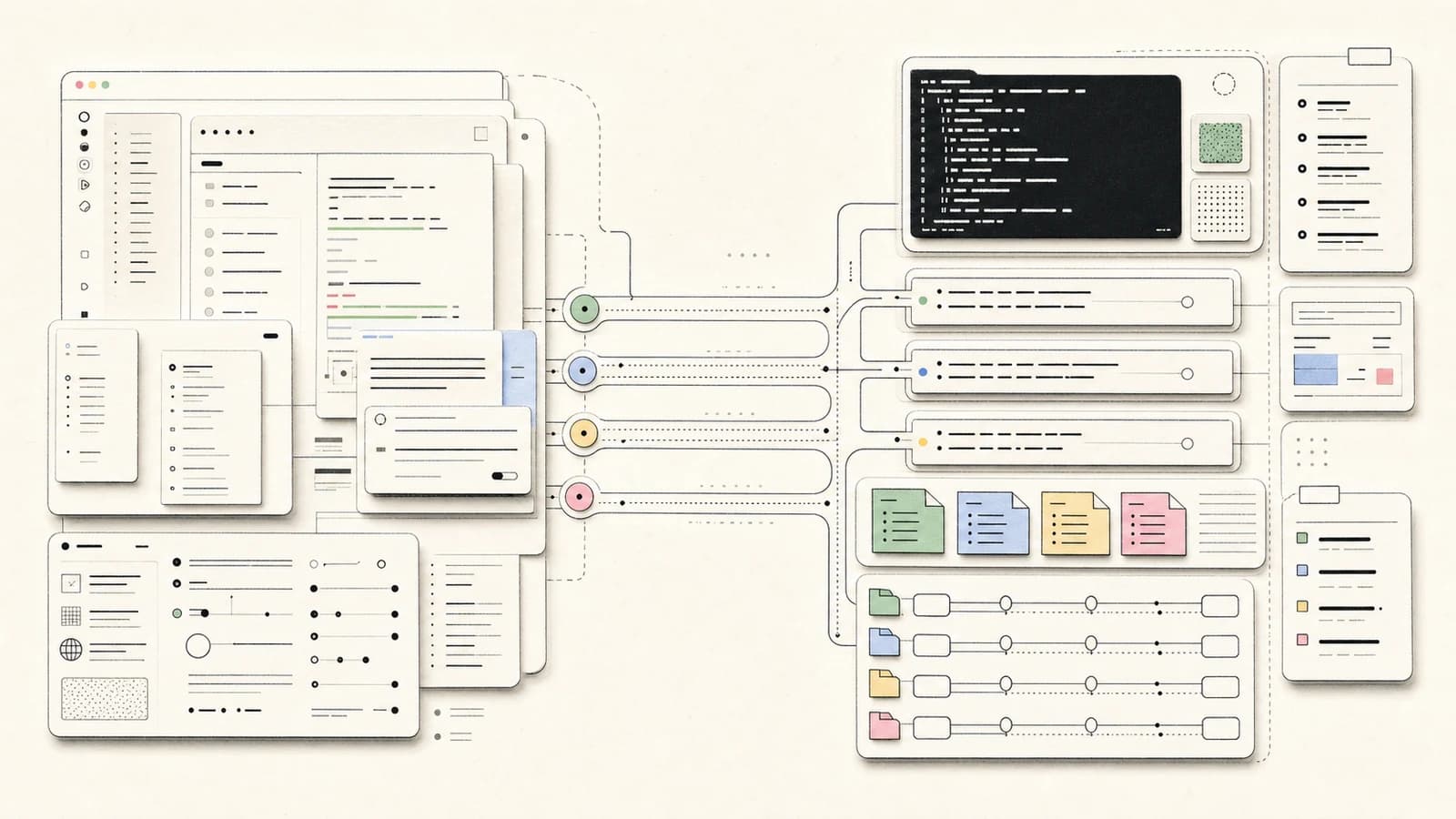
Why people make this switch
Last updated: October 9, 2026. Install commands, the rules-to-CLAUDE.md mapping, the MCP command and both price lists were re-checked against the official docs today.
To migrate from Cursor to Claude Code, install the CLI, turn your .cursor/rules files into a CLAUDE.md (or keep a shared AGENTS.md, which Claude Code can read directly), re-add your MCP servers with claude mcp add, and run both tools side by side for two weeks before you cancel anything.
Updated October 9, 2026: the Homebrew command is now
brew install --cask claude-codeand the native installer is the path the docs lead with; Cursor project rules are.mdcfiles and global User Rules live under Customize, Rules; Claude Code can readAGENTS.mdwithout an import; custom commands merged into skills; the Context7claude mcp addcommand needed the--separator; and current prices are Cursor Pro $20, Pro Plus $60, Ultra $200 and Teams $40 per user, against Claude Pro $20 ($17 a month billed annually) and Max from $100.
If you only need the fast decision path:
- Want terminal-first autonomous work and a stronger parallel agent loop: switch to Claude Code.
- Want visual inline diffs and tight editor feedback: stay on Cursor, or run a hybrid setup.
- Want a side-by-side breakdown: start at Claude Code vs Cursor.
- Want the budget view first: start at /pricing and AI coding tools pricing 2026.
- Want the broader market map first: start at Best AI coding tools 2026 and Claude Code vs Cursor vs Codex.
Official sources
Use this guide as the workflow path, then verify setup and pricing details against the official sources before you commit.
| Item | Official source |
|---|---|
| Claude Code docs | Claude Code overview |
| Claude Code setup | Claude Code setup docs |
| CLAUDE.md and AGENTS.md | How Claude remembers your project |
| Claude Code MCP | Connect Claude Code to tools via MCP |
| Claude plans | Claude pricing |
| Cursor rules | Cursor Rules docs |
| Cursor pricing | Cursor pricing and Cursor models and pricing docs |
| Multi-tool budgeting | AI coding tools pricing 2026 |
If you are reading this, you probably already know why. The most common triggers I hear:
- You tried a parallel agent workflow and found Cursor's chat-first UX limiting
- You hit the token ceiling on Cursor Pro and the bill surprised you
- You want terminal-native tooling that plays well with tmux, worktrees, and cron
- You want to run long-running autonomous sessions that Cursor's architecture does not support
Claude Code is not a strict upgrade over Cursor. It is a different shape. You trade Cursor's visual inline-diff experience for a terminal agent with deeper memory, longer context handling, and better parallelism. If your workflow was already mostly chat-driven with occasional inline completions, the transition is cheaper than it looks.
This guide assumes you are staying on macOS or Linux; Claude Code on Windows is supported but the setup paths differ slightly.
If your real blocker is plan math rather than workflow migration, check AI coding tools pricing comparison before you move anything.
Before you start
Decide up front which of these three paths you are taking:
- Full switch. Delete Cursor, commit to Claude Code for everything.
- Hybrid. Keep Cursor for visual review and inline edits, use Claude Code for autonomous work.
- Evaluation. Two-week trial, switch back if it does not stick.
Most people land on option 2 for the first month, then drift toward option 1 as they build habits. Know which one you are trying and check in at the two-week mark.
Step 1: Install Claude Code
The native installer is the path the setup docs lead with on macOS, Linux and WSL:
curl -fsSL https://claude.ai/install.sh | bash
claude --version
Or via Homebrew:
brew install --cask claude-code
npm still works if you already manage CLIs that way:
npm install -g @anthropic-ai/claude-code
You sign in with a Claude Pro, Max, Team or Enterprise subscription, or with a Console account billed per token through the API. Run claude in your project and it walks you through login on first launch; /login switches accounts later. Pro is $20 a month ($17 billed annually) and Max starts at $100 a month per Claude pricing. For long autonomous sessions a subscription is usually the better default, because metered API use adds up faster than you expect. The usage limits playbook covers how far each plan goes.
Step 2: Migrate your Cursor Rules
This is the biggest single piece of the transition. Cursor Rules become Claude Code's CLAUDE.md.
Find your Cursor Rules:
.cursor/rules/*.mdcin each project (per the Cursor Rules docs, project rules are.mdcfiles)- Customize > Rules in Cursor for your global User Rules
- An
AGENTS.mdat the repo root or in subdirectories, which Cursor also supports
If the project already has an AGENTS.md, you may not need to copy anything. The Claude Code memory docs say Claude Code can read AGENTS.md as your project instructions without adding a CLAUDE.md, an import, or a setting. If you want Claude-specific additions on top, create a CLAUDE.md next to it that starts with an @AGENTS.md import so every tool keeps sharing one file. The AGENTS.md configuration smells catalog is worth a skim before you copy old rules forward.
For .mdc rules, run /init inside Claude Code to generate a starting CLAUDE.md from the codebase, then paste in the rules that still matter. Large rule sets can be split across files in .claude/rules/. Clean the result up using Claude Code conventions:
# Project Name

<One-paragraph description of what this project is and who uses it>

## Stack

- Framework, language, package manager

## Rules

- Concrete rules, one per line, imperative voice
- "Use pnpm, not npm" not "please prefer pnpm"
- "No em dashes" not "avoid excessive punctuation"

## Commands

- `pnpm dev` - local development
- `pnpm test` - run tests
- `pnpm lint` - typecheck and lint

## Architecture notes

<Anything that is not obvious from the file tree>
For global rules, write a ~/.claude/CLAUDE.md. Claude Code loads this every session.
Step 3: Rebuild your prompt library as skills
Reusable prompts and procedures become skills in Claude Code. Per the skills docs, custom slash commands have been merged into skills, so there is one place to put them:
- Personal prompts and procedures -
~/.claude/skills/<name>/SKILL.md, available in every project - Project-specific prompts -
.claude/skills/<name>/SKILL.md, committed with the repo - Old-style commands - existing
.claude/commands/<name>.mdfiles keep working
A skill runs when you type /<name>, and Claude also loads it automatically when the request matches the skill's description. Cursor's paid plans list skills too, so a SKILL.md you write here is not a one-way door. What are Claude Code skills covers the format from zero.
Step 4: Keybindings and editor integration
Claude Code is terminal-native, so your editor keybindings stay where they are. The integration flip is instead at the terminal layer:
- tmux users are usually already happy. Claude Code runs in any pane.
- Alacritty / Kitty / Ghostty users benefit from the fast redraw when Claude is streaming output
- Warp users can use the AI blocks and still run Claude Code side-by-side
If you previously used Cursor's shortcut for "new Composer", build the muscle memory for your terminal equivalent. Most people bind a tmux key to "new Claude Code session" within one week.
Step 5: Learn the workflow changes
Cursor's core flow is chat with visual diffs, then apply. Claude Code's core flow is agent-driven edit with preview-before-commit. Three habits to build:
Let the agent do more in one turn. In Cursor you would often send five small prompts that together accomplish a task. In Claude Code, one well-scoped prompt accomplishes the same task with less back-and-forth. The agent is expected to make multiple related edits without asking.
Review the diff, not the intent. Cursor trains you to approve each edit. Claude Code trains you to let a batch of edits happen and then review the resulting diff with git diff at the end. This is faster once you trust it.
Use worktrees for parallel work. The git worktree feature becomes a first-class part of your workflow. You start a feature in a worktree, run Claude Code there, and the main branch stays untouched. Claude Code worktrees walks through the setup.
Step 6: Set up the plugins and skills you actually need
Anthropic publishes example plugins in the claude-code repository. Three that map well to a Cursor workflow:
- feature-dev - end-to-end feature building. Plan, implement, test, review.
- code-review - run a review pass on uncommitted changes or a specific PR.
- commit-commands - draft a commit message and run the commit.
The official claude-plugins-official marketplace is added the first time you start an interactive session, so installing from it is a single command per the plugin docs:
/plugin install commit-commands@claude-plugins-official
Run /plugin on its own to browse what else is there. Browse the skills marketplace and the best Claude Code skills of 2026 for patterns, but start by copying the SKILL.md of a skill close to your need and adapting it. The learning curve is fast - by the third skill you write, you will have internalized the format.
Step 7: Wire MCP servers
This is where Claude Code pulls ahead of Cursor for most developers. MCP servers give your agent access to external systems - GitHub, Slack, Linear, your database, a search engine. Cursor supports MCP now too, but the ecosystem is deeper and the tooling is more mature in Claude Code.
Start with three MCP servers:
- context7 or similar docs server for up-to-date library documentation
- filesystem server for explicit directory permissions
- github server for PR management and issue triage
The general form is claude mcp add [options] <name> -- <command> [args...] per the MCP docs; the -- separates Claude Code's flags from the server's own. Context7's setup docs give both a local and a hosted variant:
# local stdio server
claude mcp add --scope user context7 -- npx -y @upstash/context7-mcp --api-key YOUR_API_KEY

# or the hosted server over HTTP
claude mcp add --scope user --header "Authorization: Bearer YOUR_API_KEY" --transport http context7 https://mcp.context7.com/mcp
--scope user makes the server available in every project; leave it off to scope it to the current one. If you already configured servers in Cursor, re-add each one this way rather than copying JSON across. Browse more at mcp.developersdigest.tech or start from the best MCP servers of 2026.
Step 8: The first week test
After a week on Claude Code, ask:
- Did I feel faster or slower on a typical feature?
- Did I end up opening Cursor for specific tasks? Which ones?
- Did my code review practice survive the agent doing multi-file edits?
- Am I paying more or less than Cursor Pro?
If you find yourself opening Cursor for visual inline diff review, that is fine. Many people settle into "Claude Code for autonomous work, Cursor for inline review" as a long-term hybrid. The real failure mode is opening Cursor because you do not trust Claude Code yet - that is a signal to either watch a tutorial on autonomous mode or to keep two-week trialing.
Common gotchas
- You forgot to write CLAUDE.md. Claude Code without CLAUDE.md is Claude Code without context. It will work, but it will feel dumber than Cursor felt with your Rules loaded. Write the CLAUDE.md on day one.
- You are still chatting in small turns. The agent is designed for larger tasks per turn. Batch your requests.
- You are not using worktrees. One of the biggest power moves is lost if you run everything on main.
- You expect visual inline diffs. Claude Code produces full file edits you review after. Different mental model. Use
git diffto see what changed. - You skipped installing skills. The out-of-box experience is thin. Install three to five skills on day one.
When not to switch
A few genuine reasons to stay on Cursor:
- You spend most of your time on small inline edits with tight feedback loops
- You rely heavily on Composer's visual file-selection UI
- Your team's code review workflow is tightly integrated with Cursor's diff viewer
- You lean on Cursor's cloud agents and Bugbot reviews and do not want to rebuild that pipeline yet
These are real workflows. Claude Code is not strictly better for every developer. It is better for developers whose work has grown into agent-scale tasks, parallel work, and autonomous runs.
Further reading
- Getting Started with Claude Code - the basics, if you skipped them
- How to Write CLAUDE.md: The Complete Guide - deep dive on the key config file
- Writing Your First Claude Code Skill - build your own skill library
- Claude Code vs Cursor - the direct head-to-head
- Claude Code vs Cursor vs Codex - the three-way buying path
- Claude Code Mastery - the guided course path if you want structure while you switch
- AI coding tools pricing 2026 - check the budget before changing tools
- Claude Code usage limits playbook - avoid hitting plan limits in week one
- Claude Code hooks explained - the closest equivalent to Cursor's hooks once you move over
The transition is real work. The payoff is usually real. If you are going to try, commit to two weeks of Claude-Code-first usage and then decide.
FAQ
Should I fully replace Cursor with Claude Code?
Not immediately. Most developers should start with a hybrid setup, keep Cursor for visual review and UI iteration, and move heavier refactors, terminal-first tasks, and longer agent loops into Claude Code first.
Is Claude Code cheaper than Cursor?
Sometimes, but not always. As of October 9, 2026, Cursor Pro is $20 a month, Pro Plus $60 and Ultra $200, with Teams at $40 per user (Cursor models and pricing). Claude Pro is $20 a month ($17 billed annually) and Max starts at $100 (Claude pricing). At the entry tier they cost the same; the difference is how far each plan's usage goes on your workload. Check /pricing and AI coding tools pricing comparison before deciding.
Does Claude Code read my Cursor rules or AGENTS.md?
.cursor/rules/*.mdc files are not among the instruction locations in Claude Code's memory docs, so move those rules into CLAUDE.md or .claude/rules/. Claude Code can read AGENTS.md directly as project instructions, so a repo already set up with AGENTS.md for Cursor usually works unchanged; if it is not picked up, add an @AGENTS.md import to a CLAUDE.md next to it.
What is the fastest way to migrate my setup?
Start by translating Cursor Rules into CLAUDE.md, preserving your core commands, architecture constraints, and review habits. Then install only the few skills and MCP servers you actually use weekly instead of rebuilding your whole setup on day one.
Technical content at the intersection of AI and development. Building with AI agents, Claude Code, and modern dev tools - then showing you exactly how it works.
Was this helpful?
Related Guides
Getting Started with DevDigest CLI
Install the dd CLI and scaffold your first AI-powered app in under a minute: Next.js 16, Convex, Clerk, Autumn, Tailwind v4 and an agent-ready CLAUDE.md.
Run AI Models Locally with Ollama and LM Studio
Install Ollama and LM Studio, pull your first model, and run AI locally for coding, chat, and automation - with zero cloud dependency.
Getting Started with Claude Code
Install Claude Code, configure your first project with CLAUDE.md, learn the essential commands and workflows, and start shipping code in under 5 minutes.
Related Tools

Cursor
AI-native code editor forked from VS Code, now sold as part of The X Subscription. Agent edits multiple files at once an...
View Tool
Claude Agent SDK
Anthropic's SDK for building agents on the same tools, agent loop, and context management that power Claude Code. Python...
View ToolClaude
Anthropic's model family. As of October 2026: Opus 5.5 as the default, Fable 5.1 for the hardest long-horizon work, Sonn...
View ToolCodeburn
Interactive TUI dashboard that shows exactly where your Claude Code and Cursor tokens are going, in real time.
View ToolRelated Videos

Open Design: Turn Websites into Design Assets for Cursor & Claude Code
Open Design: Open-Source n8n App That Turns Any Website into a Brand Kit, Design System, HTML + Images The video introduces Open Design, an MIT-licensed full-stack template that combines AI and n8n a...

Claude Code: NEW Remote Control, Auto Memory, Plugins & More
Anthropic's Big Claude Code & Cowork Update: Remote Control, Scheduled Tasks, Plugins, Auto Memory + New Simplify/Batch Skills The script recaps a consolidated update on new Anthropic releases across
Self-Improving Skills in Claude Code
Setting Up Self-Improving Skills in Claude Code: Manual & Automatic Methods In this video, you'll learn how to set up self-improving skills within Claude Code. The tutorial addresses the key problem
Related Posts
Claude Skills: A technical deep dive into Anthropic's new approach to AI context management
Claude Skills load instructions, scripts and resources progressively so context stays small. A technical deep dive into...
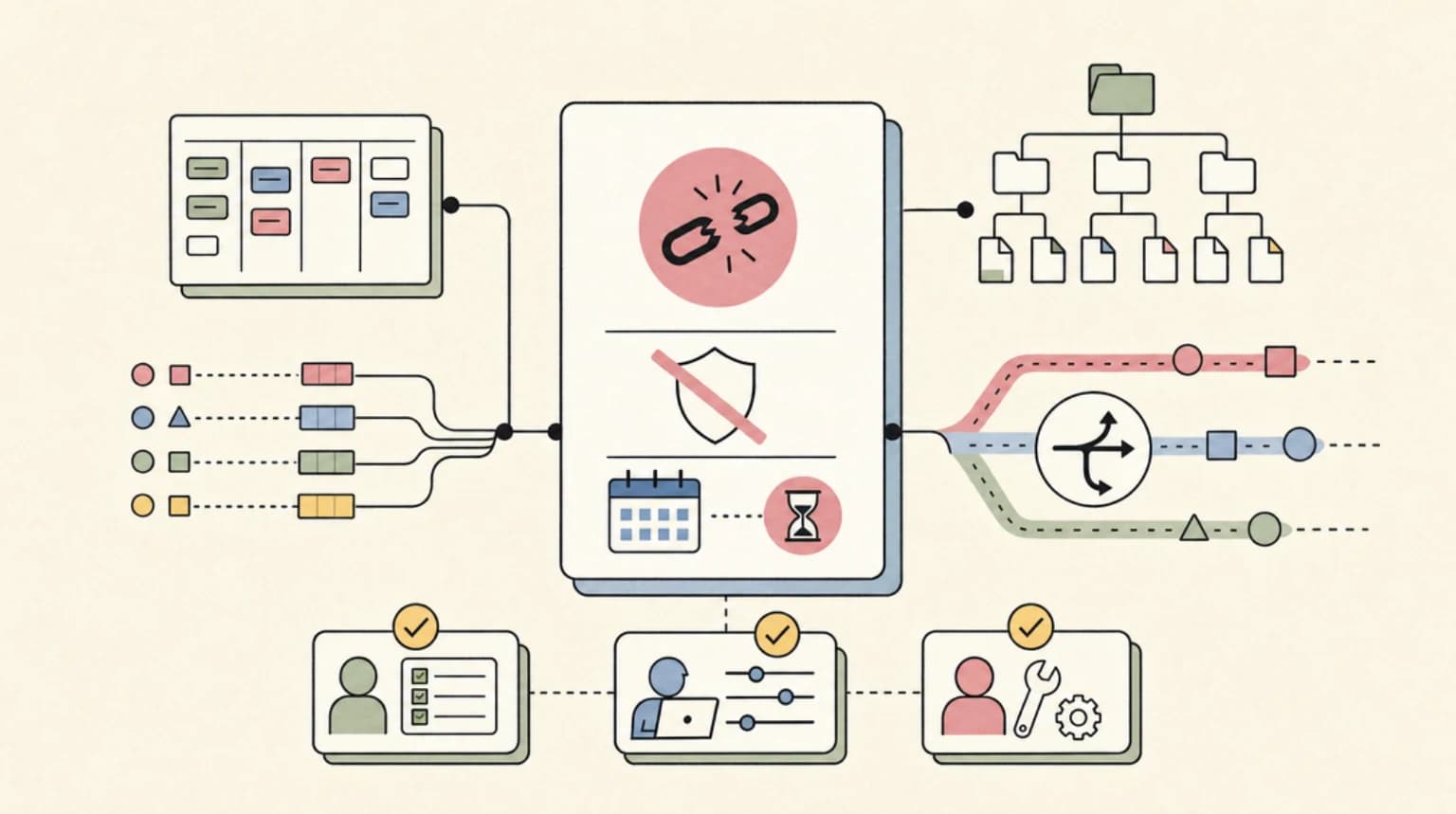
Claude Inference Hooks: Build an AI Security Server (GA)
Claude Inference hooks left beta for Enterprise on Oct 20. How the prompt and tool call frames work, how to verify signa...
How to Publish a Plugin to the Claude Directory (Developer Portal Guide)
Submit a plugin to the Claude directory: validate it, clear the security scan, publish, and read 90 days of usage analyt...
Claude Agent SDK in Late 2026: What Is New and How to Use It
What changed in the Claude Agent SDK by October 2026: nested subagents with caps, SessionStore, skills, plugins, structu...
Claude API Inline Tool Definitions: Add Tools Mid-Conversation
Claude API inline tools beta: define, reshape or upgrade a tool mid-conversation with one system message and keep the pr...
Claude Fable 5.1 in Claude Code: How to Switch, Pin, and Pay Less
Claude Code v2.1.257 points /model fable at Fable 5.1: 1M context, $10/$50 per MTok, $0.25 cache reads. Setup, gotchas,...
